
How to Add Quantity Discounts in WooCommerce for Free
Selling more items per order does not always require complicated promotions or coupon codes. A simple quantity discount can give customers a clear reason to increase their order: the more they buy, the better the price becomes.
WooCommerce does not include flexible quantity-based pricing rules as a standard feature. However, you can add them with a free plugin and manage the discounts directly from WordPress.
In this guide, you will learn how WooCommerce quantity discounts work, when to use them and how to create your first pricing tiers with WDOnline Quantity Discounts for WooCommerce.
What are WooCommerce quantity discounts?
A quantity discount reduces the price when a customer buys a specified number of the same product. The discount can increase at different quantity levels.
For example:
Quantity |
Price per item |
Customer saving |
|---|---|---|
| 1–4 | $20.00 | — |
| 5–9 | $18.00 | 10% |
| 10 or more | $16.00 | 20% |
This pricing model is also known as:
- bulk pricing
- tiered pricing
- volume discounts
- quantity-based pricing
- multi-buy pricing
The names vary, but the objective is the same: rewarding customers for purchasing a larger quantity.
Why offer quantity-based pricing?
Quantity discounts can be useful for both business-to-consumer and business-to-business stores. They can help you:
- increase the average number of items per order
- encourage customers to choose a larger quantity
- make bulk prices visible before checkout
- offer wholesale-style pricing without manually issuing coupons
- move products with high stock levels
- create simple volume pricing for repeat customers
Unlike a coupon, a quantity discount can be applied automatically. Customers do not need to remember a code, and the lower price becomes available as soon as the required quantity is reached.
Choose the right type of quantity discount
Before creating a rule, decide how the discounted price should be calculated.
Percentage discount
A percentage discount reduces the normal product price by a specified percentage.
Example: Buy 5 or more and receive 10% off.
This is useful when you want to apply the same relative saving across products with different prices.
Fixed unit price
A fixed-price tier gives each item a specific price when the customer reaches the required quantity.
Example: The normal price is $20, but the unit price becomes $17 when the customer buys 10 or more.
This method gives you precise control over the final unit price.
Multiple pricing tiers
You can also create several levels:
- 5 or more: 5% discount
- 10 or more: 10% discount
- 25 or more: 15% discount
Multiple tiers make the next saving visible and can encourage customers to add a few more items to their cart.
How to add quantity discounts to WooCommerce
The following method uses the free WDOnline Quantity Discounts for WooCommerce plugin.
Step 1: Download and install the plugin
Visit the WDOnline Quantity Discounts for WooCommerce plugin page and download the latest version.
In the WordPress dashboard:
- Go to Plugins > Add New Plugin.
- Select Upload Plugin.
- Choose the downloaded ZIP file.
- Select Install Now.
- Activate the plugin when the installation is complete.
Always test pricing changes on a staging site before enabling them in a live store.
Step 2: Open a WooCommerce product
Go to Products > All Products and edit the product for which you want to offer a quantity discount.
Locate the quantity discount settings in the product data area. This is where you can add pricing rules for the selected product.
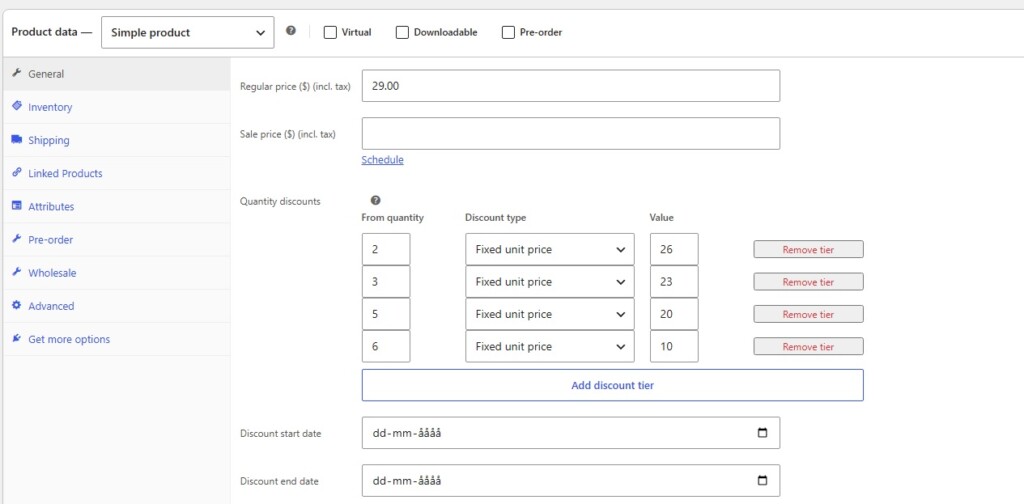
Step 3: Create the pricing tiers
Add the minimum quantity and the discount or unit price for each level.
For example:
| Minimum quantity | Discount type | Value |
|---|---|---|
| 5 | Percentage | 10% |
| 10 | Percentage | 15% |
| 20 | Percentage | 20% |
Make sure the quantity levels do not conflict and that the saving increases logically from one tier to the next.
Update the product when the rules are complete.
Step 4: Configure the display
A quantity discount is most effective when customers can see it before adding the product to their cart. Use the plugin settings to configure the pricing information and customer-facing text.
Keep the presentation simple. A small table showing quantity, price and saving is usually easier to understand than a long promotional message.
If your store uses custom colours or typography, adjust the available display settings so the discount information matches the rest of the product page.
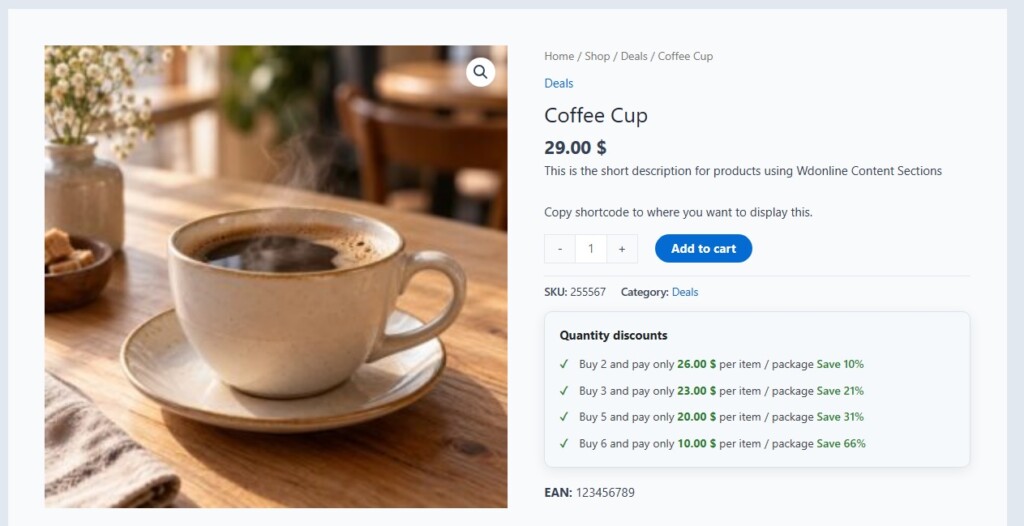
Step 5: Test the discount
Open the product page in a private browser window and test every pricing tier.
Check that:
- the correct pricing information appears on the product page
- the price changes at the intended quantity
- the cart uses the correct unit price
- the saving is displayed correctly in the cart and checkout
- taxes and rounding behave as expected
- the discount works with simple and variable products where applicable
Repeat the test with any other plugins that affect product prices, coupons, the cart or checkout.
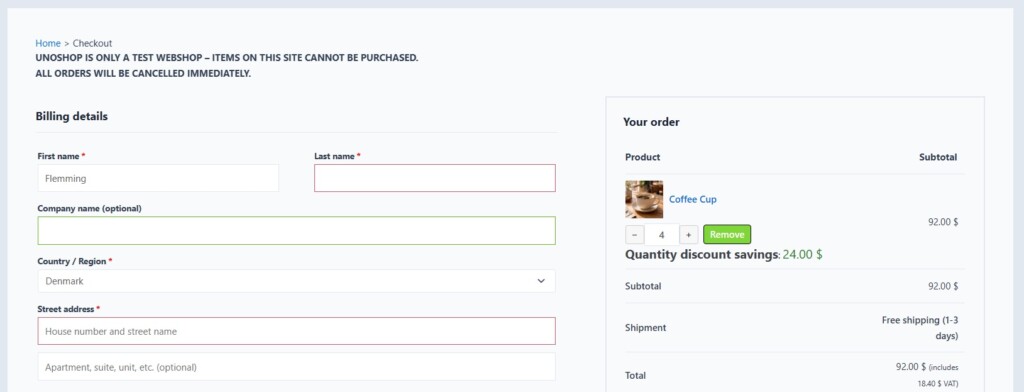
Quantity discounts for variable products
Variable products require additional attention because each variation can have its own regular price, stock status and discount rules.
When configuring quantity discounts for variations:
- verify the rules for every relevant variation
- check that changing the selected variation updates the displayed information
- test variations with different regular prices
- confirm whether quantities are calculated per variation or across the entire product
For example, five red T-shirts and five blue T-shirts may be treated differently from ten units of the same variation. Test the exact purchasing behaviour your store needs before publishing the offer.
Applying discounts to product categories
Category-based rules can save time when several products should receive the same percentage discount. Instead of editing every product separately, you can select a category and create a shared rule for the products in that category.
Before applying a category rule to a large catalogue:
- Test it with a small product category.
- Check products that already have individual discount rules.
- Confirm how sale prices and other pricing plugins interact with the rule.
- Review the resulting prices and profit margins.
Category rules are convenient, but individual product rules provide more precise control when margins vary significantly.
Importing and exporting discount rules
For stores with many products, editing every rule manually can become time-consuming. Import and export tools make it easier to:
- create or update rules in bulk
- review discount data in a spreadsheet
- transfer pricing rules between stores
- keep a backup before making large changes
Always export a current copy before performing a bulk update. Test the import with a few products first, then verify the affected products in both the WordPress dashboard and the storefront.
Quantity discounts versus coupons
Quantity discounts and coupons can both reduce prices, but they solve different problems.
Quantity discounts |
Coupons |
|---|---|
| Applied automatically | Usually require a code |
| Based on the number of items | Often based on promotion or customer eligibility |
| Visible as pricing tiers | Usually promoted separately |
| Useful for ongoing volume pricing | Useful for temporary campaigns |
Use quantity discounts when the purchasing volume should determine the price. Use coupons when access to the promotion should depend on a code, campaign or customer group.
If both are enabled, decide whether customers should be allowed to combine them. Test the final price carefully to prevent unintended double discounts.
Best practices for WooCommerce quantity discounts
Make the saving easy to understand
Show customers exactly what they receive at each quantity. Avoid vague messages such as “bulk savings available” when you can display the actual price or percentage.
Use meaningful quantity levels
Base your tiers on normal customer behaviour, packaging sizes and profit margins. A minimum quantity of 100 will not help if most customers usually purchase two or three items.
Protect your margins
Calculate the final price after tax, payment fees, packaging and fulfilment costs. A larger order is only valuable if it remains profitable.
Avoid too many tiers
Three or four clear levels are normally easier to understand than a long table with small price differences.
Test other discounts
Coupons, sale prices, wholesale pricing, subscriptions and product bundles may also change the final price. Test combinations that customers can realistically use.
Explain whether products can be mixed
If the discount only applies to identical products or variations, make that clear. Customers should know whether different colours, sizes or products count towards the same quantity.
Frequently asked questions
Does WooCommerce include quantity discounts by default?
WooCommerce includes regular prices, sale prices and coupons, but it does not provide flexible product-level quantity pricing tiers as a standard feature. A plugin is normally used to add this functionality.
Can I add quantity discounts to WooCommerce for free?
Yes. WDOnline Quantity Discounts for WooCommerce provides tools for creating quantity-based pricing without requiring a paid subscription.
Can quantity discounts work without coupon codes?
Yes. Quantity discounts can be applied automatically when the customer reaches the required quantity, so no coupon code is necessary.
Can I create more than one discount level?
Yes. Multiple tiers can be used to offer progressively better prices at higher quantities.
Do quantity discounts work with variable products?
They can, but variation pricing requires careful configuration and testing. Check each relevant variation and confirm how mixed variation quantities are calculated.
Can I use a fixed price instead of a percentage discount?
Yes, if the selected rule supports a fixed unit price. This lets you specify the exact price customers pay after reaching the quantity threshold.
Will quantity discounts work with sale prices and coupons?
That depends on the pricing configuration and the other plugins installed on the store. Test all permitted combinations and decide whether discounts should be stackable.
Can I import quantity discount rules?
The plugin includes tools intended to make bulk management and import or export workflows easier. Create a backup and test a small sample before updating a large number of products.
Add quantity-based pricing to your store
Quantity discounts give customers a straightforward reason to buy more and allow store owners to create structured bulk pricing without distributing coupon codes.
Download WDOnline Quantity Discounts for WooCommerce to create product-level pricing tiers and manage quantity-based offers from WordPress.
The plugin is free and is maintained with compatibility updates, improvements and new features.
About WD Online
WD Online develops free plugins for WordPress and WooCommerce. The plugins focus on practical store-management needs, straightforward configuration and features inspired by real-world use.
Explore all free WordPress and WooCommerce plugins from WD Online.
If a WD Online plugin saves you time, you can support its continued development through:
Support WD Online
Our plugins are free. If you find them useful, you can support continued development. You decide the amount yourself and we see any amount as recognition that our plugin helps others.


Leave A Comment