
Offer flexible and secure invoice payments to your WooCommerce B2B customers—with individual payment terms, credit limits, invoice management, and complete control over who can pay by invoice.
WDOnline Invoice Payment for WooCommerce adds a professional invoice payment gateway designed for wholesale stores, business customers, and other WooCommerce shops that sell on account.
Instead of applying the same payment conditions to everyone, you can configure invoice eligibility, payment terms, credit limits, and overdue-payment rules globally, by user role, or individually for each customer.
Flexible payment terms for every customer
Different customers often require different payment agreements. One customer may have 14-day terms, while another has 30 or 60 days.
The plugin allows you to configure payment terms at three levels:
- Global defaults for all eligible customers
- Separate conditions for individual WordPress user roles
- Customer-specific settings that override role and global defaults
The payment term is saved directly on the order when it is placed, ensuring that existing orders retain their original conditions even if the customer’s settings change later.
Customer credit limits
Protect your business by defining how much outstanding invoice credit each customer may use.
You can set:
- A global default credit limit
- Different credit limits for individual user roles
- A specific credit limit for each customer
- Unlimited credit when no limit is required
- An optional grace period for overdue invoices
- Automatic blocking of new invoice payments when overdue invoices exist
The plugin calculates the customer’s current outstanding invoice balance and available credit. Open invoice orders that have not yet been invoiced are also included, preventing customers from placing several orders that collectively exceed their credit limit.
If invoice payment is unavailable, the customer receives a clear and customizable message explaining the reason.
Complete invoice management
Invoice information is managed independently from the normal WooCommerce order status.
For each invoice order, administrators can manage:
- Customer payment terms
- Invoice number
- Invoice date
- Calculated due date
- Paid or unpaid status
- Payment date
- External PDF invoice
The due date is calculated from the actual invoice date—not the date the order was placed. This makes the plugin suitable for businesses where an order may be created before the final invoice is issued.
Secure PDF invoice uploads
If invoices are generated in an external accounting system, the completed PDF can be uploaded directly to the corresponding WooCommerce order.
Uploaded invoices are protected and are not added to the public WordPress Media Library. Customers can access their invoice only after logging in through their WooCommerce account.
The plugin does not generate invoices itself, allowing you to continue using your preferred accounting or invoicing software.
Dedicated customer invoice area
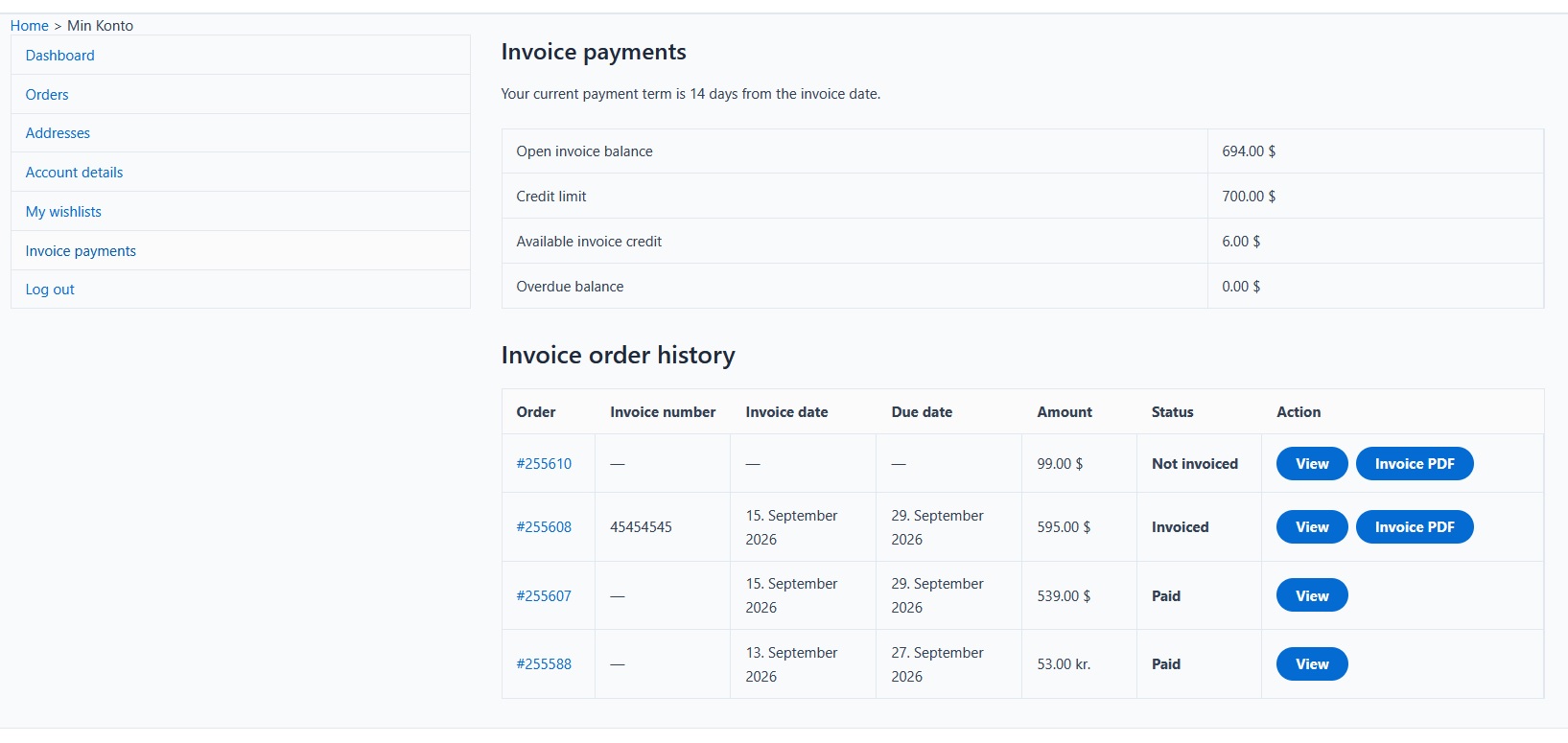
Customers receive a dedicated “Invoice payments” section under My Account.
Depending on your configuration, customers can view:
- Their current payment terms
- Open invoice balance
- Available invoice credit
- Overdue balance
- Invoice order history
- Invoice dates and due dates
- Payment status
- Secure PDF invoice downloads
The account menu label and page heading can be customized to match the terminology used by your store.
Invoice order overview
The administration area includes a dedicated overview of all orders placed using invoice payment.
Orders can be filtered by WooCommerce order status, making it easier to locate active, completed, or outstanding invoice orders.
Invoice information can also be displayed directly in the normal WooCommerce order list.
User-role management
Create new customer roles directly from the plugin by copying permissions from an existing WordPress or WooCommerce role.
The User roles overview displays all available roles, their technical slugs, and the number of assigned users. Roles created through the plugin can be safely deleted when they are no longer assigned to any users.
Invoice Payment Overview dashboard
The WordPress dashboard widget provides a quick overview of your invoice-payment activity.
Available statistics include:
- Invoice sales
- Number of invoice orders
- Number of invoice customers
- Average invoice order value
- Paid invoices
- Average payment time
- Outstanding invoice balance
- Overdue balance
- Invoices due within the next seven days
- Largest invoice customer
- Top five invoice customers
Statistics can be filtered by today, yesterday, week, month, year, all time, or a custom date range.
Choose which features to use
The plugin includes separate feature controls, allowing store owners to disable administrative and customer-facing functions they do not need.
Disabling a feature only hides its interface. Existing invoice information, customer settings, balances, and order history are preserved.
Built for modern WooCommerce stores
WDOnline Invoice Payment for WooCommerce includes support for:
- WooCommerce High-Performance Order Storage (HPOS)
- WooCommerce Checkout Blocks
- Classic WooCommerce checkout
- WordPress translation standards
- Loco Translate
- Individual and role-based customer settings
- Optional WD Online Support Diagnostics integration
The plugin works independently and does not require a separate WD Online core plugin.
Professional invoice payments without unnecessary complexity
WDOnline Invoice Payment for WooCommerce gives B2B stores a practical way to offer invoice payments while maintaining control over payment terms, customer credit, outstanding balances, overdue invoices, and invoice documents.
Give trusted customers the flexibility they need—while protecting your store from excessive unpaid credit.
WD Online Support Diagnostics is a troubleshooting tool designed to make it easier to identify technical problems with WD Online WordPress plugins.
Instead of asking you to manually collect WordPress, PHP, database and plugin information, the diagnostics tool gathers the relevant technical information in one support report.
The tool does not automatically send any information to WD Online. You remain in control of the report and decide if you want to share it with us.
What does the diagnostics tool check?
WD Online Support Diagnostics can check general information about your WordPress installation as well as plugin-specific functionality.
Depending on the WD Online plugin you are using, the report may include checks for:
- WordPress and PHP versions
- Database version and structure
- Plugin versions
- Required plugin settings
- WooCommerce dependencies and features
- AJAX and REST API functionality
- WordPress cron events
- Required WordPress hooks
- Database tables and options
- Configuration problems
- Known error conditions
- Plugin-specific functionality
Each compatible WD Online plugin can provide its own diagnostic checks.
A result marked Good normally means that the check passed. A Warning means something may require attention but does not necessarily indicate a problem. A Critical result normally means that something required by the plugin is missing or incorrectly configured.
If you experience a problem
If one of our plugins is not working as expected, we recommend creating a diagnostic report before contacting support.
1. Open Support Diagnostics
In your WordPress administration area, go to:
WD Online → Support Diagnostics
Review the diagnostic results. In some cases, the report may already identify the problem.
2. Start diagnostic logging
Click:
Start 15-minute diagnostic logging
Logging starts immediately. You do not have to wait 15 minutes.
The 15-minute period is simply the maximum time the temporary logging session remains active.
3. Reproduce the problem
While diagnostic logging is active, perform the action that causes the problem.
For example:
- visit the affected page
- place a test order
- change the relevant setting
- reproduce the frontend error
- perform the action that does not work as expected
Compatible WD Online plugins may record technical diagnostic events during this process.
4. Stop diagnostic logging
As soon as you have reproduced the problem, return to:
WD Online → Support Diagnostics
and click:
Stop diagnostic logging
You do not need to wait until the full 15 minutes have passed.
Events recorded before you stop logging remain available in the support report.
5. Create the support report
You can then:
- copy the support report
- download the report as TXT
- download the report as JSON
Send the report to WD Online together with a short description of the problem.
It is especially helpful if you tell us:
- which WD Online plugin is affected
- what you expected to happen
- what actually happened
- how we can reproduce the problem
- whether the problem happens every time or only occasionally
What information is sent to WD Online?
Nothing is sent automatically.
WD Online Support Diagnostics stores diagnostic information locally on your WordPress installation. You must actively copy or download the report and send it to us.
Starting diagnostic logging does not establish a connection to WD Online and does not automatically submit telemetry or support information.
Privacy
The diagnostics system is designed to collect technical information rather than personal information.
Diagnostic reports should not normally contain:
- passwords
- WordPress security salts
- database passwords
- API secrets or private API keys
- authentication cookies
- payment information
- complete customer or order information
- customer email addresses
- visitor IP addresses
- other unnecessary personally identifiable information
Individual WD Online plugins are also designed to expose only the information required to diagnose their own functionality.
Temporary diagnostic logging
Diagnostic logging is intentionally temporary.
When enabled, compatible WD Online plugins can record diagnostic events for up to 15 minutes.
You can stop the logging session at any time.
Starting a new diagnostic logging session clears events from the previous temporary session, allowing you to create a clean report for the problem you are currently investigating.
Before contacting support
For the fastest possible troubleshooting, please:
- Update the affected WD Online plugin to the latest version.
- Update WD Online Support Diagnostics to the latest version.
- Open WD Online → Support Diagnostics.
- Check for Warning or Critical results.
- Start diagnostic logging.
- Reproduce the problem.
- Stop diagnostic logging.
- Download or copy the support report.
- Send the report to WD Online together with a description of the problem.
This gives us much more useful information about what is happening on your website and can significantly reduce the time needed to identify the cause of a problem.
Click on “Download latest version” below to download the latest version of our diagnostic tool.
You install the tool as you normally would when you add a plugin to your WordPress installation.
Once you have run the tool as described, you can send the report to us at this email: mail@wdonline.dk
WDOnline Invoice Payment for WooCommerce adds a flexible invoice payment method to WooCommerce. It is designed for B2B stores, wholesale customers, and other businesses that allow approved customers to place orders on account.
The plugin lets you control who can pay by invoice, assign payment terms and credit limits, prevent customers from exceeding their available credit, manage invoice information, and provide customers with a dedicated invoice overview in My Account.
Requirements
- WordPress 6.5 or later
- WooCommerce 8.0 or later
- PHP 7.4 or later
- A customer must have a WordPress user account and be logged in to use invoice payment
Guest customers cannot use invoice payment because the plugin needs a customer account to determine eligibility, payment terms, credit limits, and outstanding invoice balances.
Installation
- Go to Plugins → Add New Plugin in WordPress.
- Click Upload Plugin.
- Select the plugin ZIP file.
- Click Install Now.
- Activate WDOnline Invoice Payment for WooCommerce.
- Go to WD Online → WDOnline Invoice Payment for WooCommerce.
The plugin works independently and does not require a separate WD Online core plugin.
Administration tabs
The plugin administration page contains three tabs:
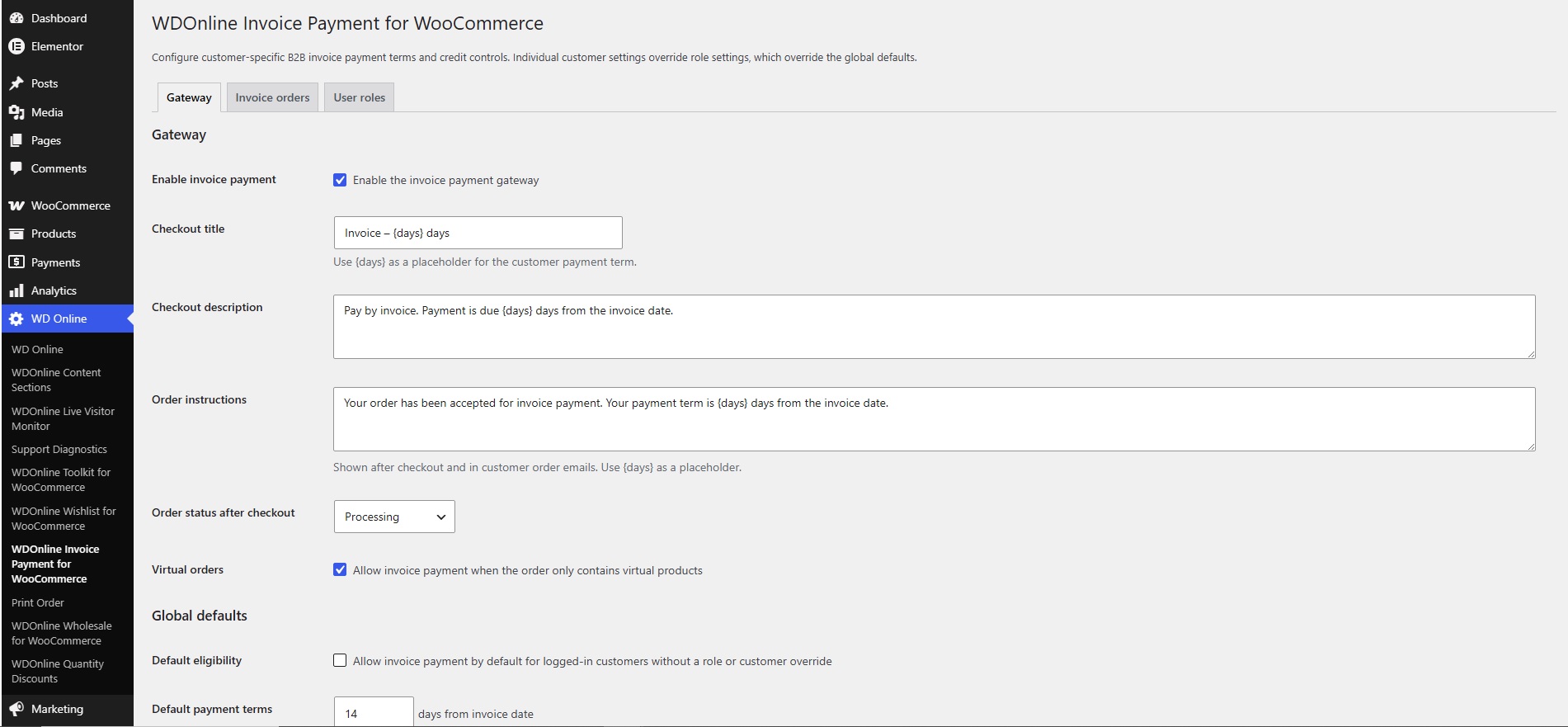
- Gateway – Configure the payment gateway, payment terms, credit controls, optional features, and role defaults.
- Invoice orders – View orders placed using invoice payment.
- User roles – Create and manage customer roles.
The User roles tab is available only to administrators.
Quick setup
For a basic setup:
- Open the Gateway tab.
- Enable Enable invoice payment.
- Enter the default payment terms, for example 14 or 30 days.
- Set a default credit limit, or enter
0for unlimited credit. - Decide whether invoice payment should be enabled globally or only for selected user roles.
- Review the settings under Role defaults.
- Save the settings.
- Edit individual customers if they need different terms, credit limits, or access rules.
Gateway settings
Enable invoice payment
This setting activates or deactivates the invoice payment gateway in checkout.
Disabling the gateway does not delete existing invoice orders, customer settings, uploaded invoice PDFs, balances, or invoice history.
Checkout title
The checkout title is the name displayed beside the payment method.
You can use the placeholder to display the customer's resolved payment term. For example:
Invoice – days
For a customer with 30-day terms, the title will be displayed as Invoice – 30 days.
Checkout description
The checkout description is shown when the customer selects invoice payment. The placeholder can also be used here.
Order instructions
Order instructions are displayed after checkout and in relevant customer order emails. Use to include the payment term assigned to the order.
Order status after checkout
Choose the WooCommerce order status assigned after an order is placed using invoice payment:
- Processing
- On hold
- Pending payment
The WooCommerce order status and the plugin's invoice status are separate. An order can therefore be processing while its invoice is not yet created or remains unpaid.
Virtual orders
Enable this option if customers should be allowed to use invoice payment for orders containing only virtual products.
Global defaults
Global defaults apply when no individual customer setting or role-specific setting overrides them.
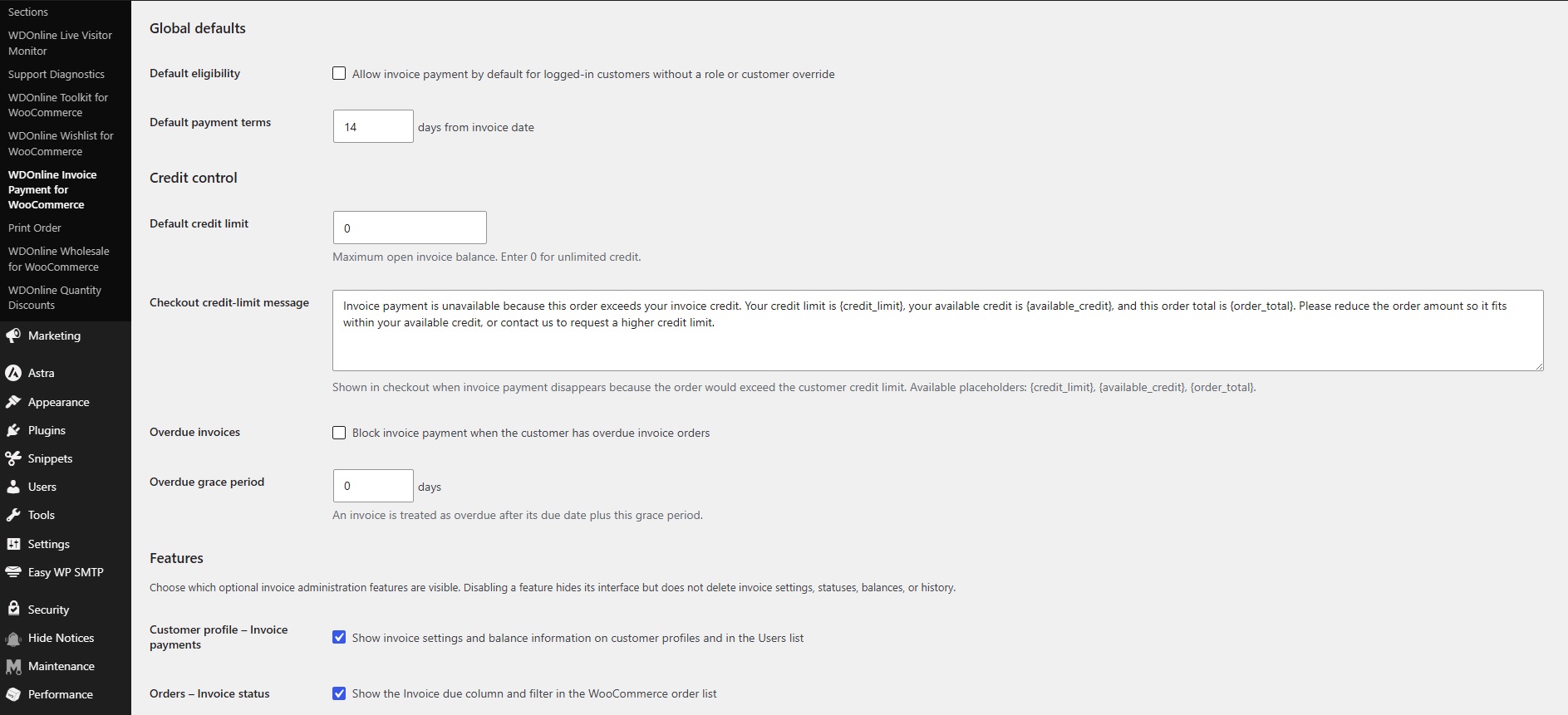
Default eligibility
Enable this option to allow invoice payment for logged-in customers by default.
If this option is disabled, invoice payment can still be enabled for selected user roles or individual customers.
Default payment terms
Enter the default number of days customers have to pay from the invoice date.
Payment terms are calculated from the invoice date, not the order date. If an order is placed on September 1, invoiced on September 5, and has 30-day terms, the due date will be October 5.
Credit control
Default credit limit
The credit limit is the maximum total invoice exposure allowed for a customer.
- Enter a positive amount to set a limit.
- Enter
0for unlimited credit.
The plugin calculates available credit as:
Credit limit − open invoice balance = available credit
Open invoice exposure includes unpaid orders placed with WDOnline Invoice Payment, including orders that have not yet received an invoice number or invoice date. This prevents a customer from placing several orders that collectively exceed the credit limit before the first invoice is issued.
Cancelled, failed, refunded, and paid invoice orders are excluded as appropriate.
Checkout credit-limit message
This message is displayed when invoice payment becomes unavailable because the new order would exceed the customer's available credit.
The following placeholders are available:
– The customer's resolved credit limit– The remaining credit after open invoice orders– The current checkout total
Overdue invoices
Enable Block invoice payment when the customer has overdue invoice orders to prevent customers with overdue invoices from placing new orders using invoice payment.
Overdue grace period
The grace period adds a number of days after the invoice due date before the invoice is treated as overdue.
For example, an invoice due on October 1 with a three-day grace period becomes overdue after October 4.
Optional features
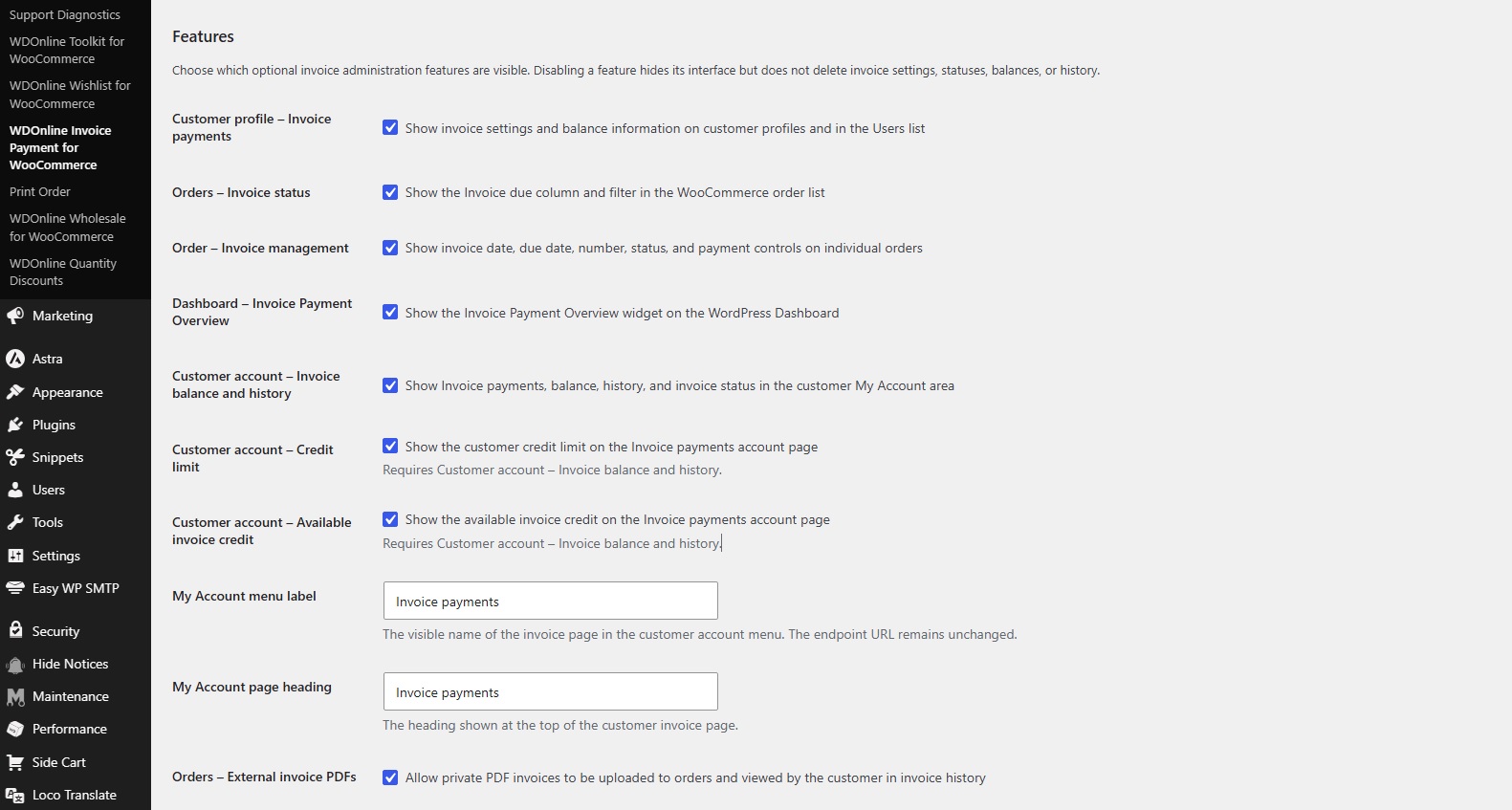
The Features section lets you choose which administrative and customer-facing parts of the plugin are active.
Disabling a feature hides its interface but does not delete saved invoice information, customer settings, order history, balances, or uploaded documents.
Customer profile – Invoice payments
Shows invoice access, payment terms, credit controls, and invoice balance information when editing a WordPress user. It also adds invoice information to the Users list.
Orders – Invoice status
Adds invoice due information and invoice-status filtering to the WooCommerce order list.
Order – Invoice management
Adds the Invoice payment panel to individual WooCommerce orders. This panel is used to manage invoice numbers, dates, statuses, payment dates, and PDF documents.
Dashboard – Invoice Payment Overview
Adds an invoice overview widget to the main WordPress Dashboard for users who can manage WooCommerce.
Customer account – Invoice balance and history
Adds the Invoice payments section to the customer's WooCommerce My Account area. It can display payment terms, balances, invoice history, statuses, due dates, and protected PDF downloads.
The following settings depend on this feature and cannot be enabled unless it is active:
- Customer account – Credit limit – Shows or hides the customer's total credit limit.
- Customer account – Available invoice credit – Shows or hides the customer's remaining available invoice credit.
Hiding these values does not disable credit control. The plugin will continue enforcing the customer's credit limit in checkout.
My Account menu label
Enter the text used for the menu item in the customer's account area. This changes only the visible label and does not change the endpoint URL.
My Account page heading
Enter the heading displayed at the top of the customer's invoice page.
Orders – External invoice PDFs
Enables secure PDF invoice uploads on invoice orders. Customers can download their invoice PDFs from their account after logging in.
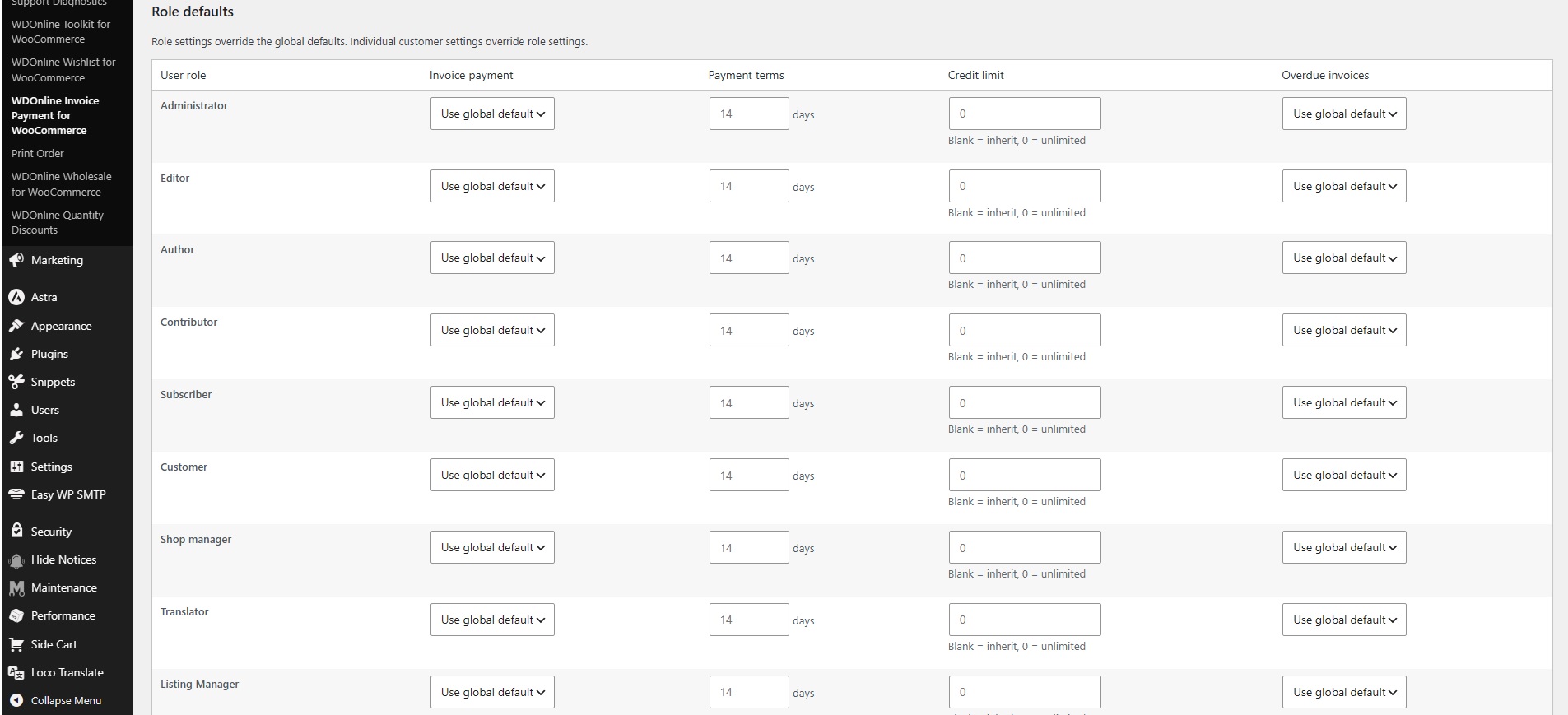
Role defaults
Role defaults let you assign different invoice conditions to different WordPress or WooCommerce user roles.
For each role, you can configure:
- Invoice payment access
- Payment terms
- Credit limit
- Overdue invoice handling
Available choices include using the global default, enabling or disabling invoice payment, entering role-specific payment terms, assigning a role-specific credit limit, and allowing or blocking invoice payment when overdue invoices exist.
The setting priority is:
- Individual customer settings
- User-role settings
- Global defaults
For example, a global payment term may be 14 days, while wholesale customers receive 30 days and one specific customer receives 60 days.
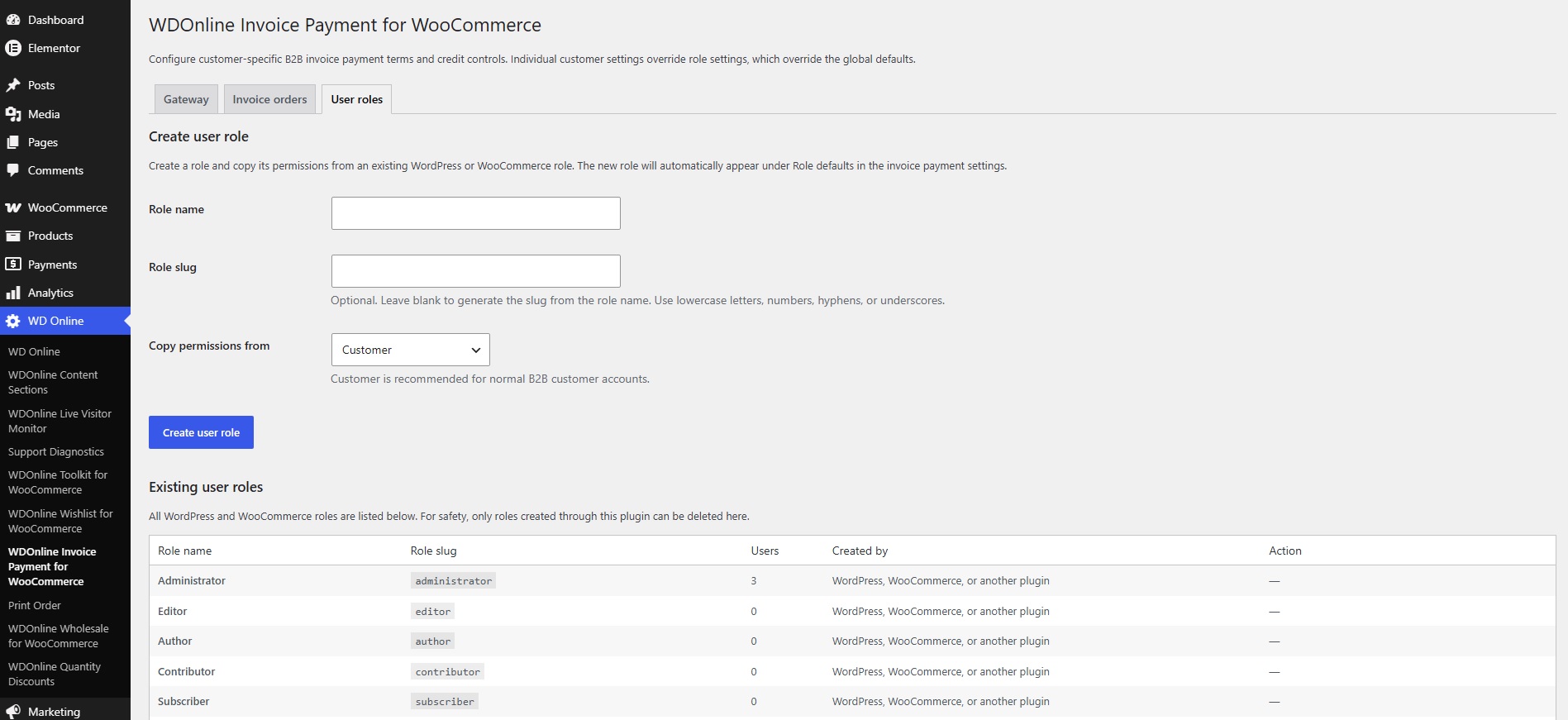
Creating customer roles
Open the User roles tab to create a new role.
- Enter a role name.
- Enter an optional technical role slug. If left blank, the plugin generates one from the role name.
- Select an existing role whose permissions should be copied.
- For normal B2B customer accounts, copying the WooCommerce Customer role is recommended.
- Create the role.
The new role will automatically appear under Role defaults.
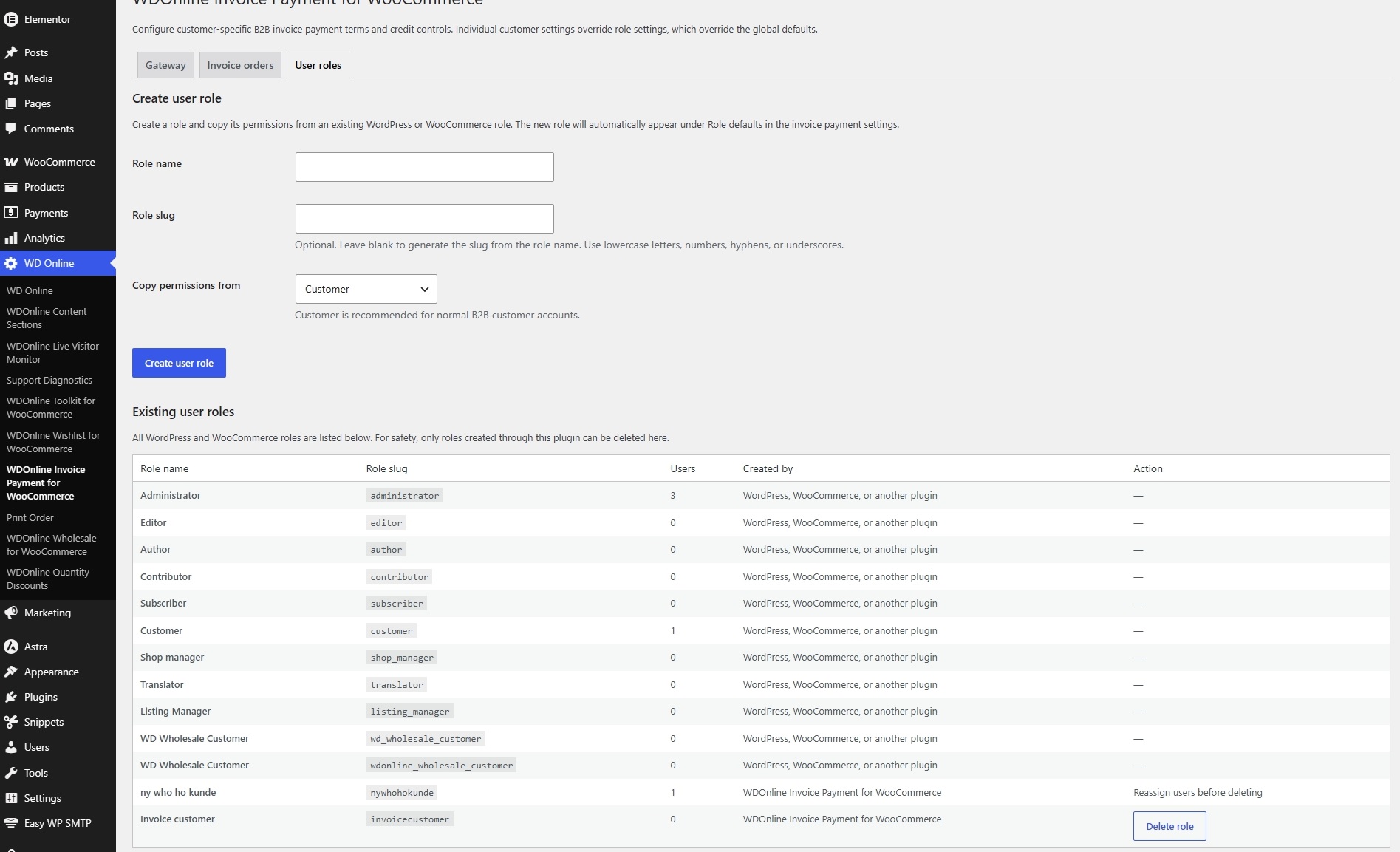
The User roles tab also shows all existing roles, their technical slugs, origins, and the number of assigned users.
Only roles created through this plugin can be deleted from this page. A role cannot be deleted while it is assigned to one or more users. WordPress, WooCommerce, and third-party roles are protected.
Individual customer settings
Individual settings override role defaults and global defaults.
To configure a customer:
- Go to Users in WordPress.
- Edit the relevant customer.
- Locate the Invoice payment section.
- Configure the required fields.
- Update the user.
Invoice payment access
Choose whether the customer should inherit the role or global setting, be explicitly enabled, or be explicitly disabled.
Payment terms
Enter the customer's payment term in days. Leave the field empty to inherit the role or global default.
Credit limit
Enter the customer's credit limit. Leave the field empty to inherit the role or global default, or enter 0 for unlimited credit.
Overdue invoice handling
Choose whether the customer should inherit the default policy, be blocked when overdue invoices exist, or remain allowed to use invoice payment despite overdue invoices.
The customer profile also displays the resolved payment terms, open invoice balance, available credit, and overdue balance when the relevant administration feature is enabled.
Checkout behaviour
Invoice payment is shown only when all relevant conditions are met. The customer must:
- Be logged in
- Be eligible for invoice payment
- Have sufficient available credit, unless credit is unlimited
- Meet the overdue-invoice rules
- Meet the virtual-order setting when the order contains only virtual products
If a credit limit is exceeded, invoice payment is removed and the configured credit message is shown. The message updates when the checkout total changes.
The plugin validates the credit rules again when the order is submitted. This server-side validation prevents checkout from being completed with invoice payment if the account no longer meets the rules.
Managing invoice orders
Orders placed using invoice payment contain an Invoice payment panel in the WooCommerce order editor.
Payment terms
The customer's resolved payment terms are saved on the order at checkout. Later changes to the customer's account do not alter existing orders.
Invoice number
Enter the invoice number generated by your accounting or invoicing system.
Invoice date
Enter the date the invoice was issued. The due date is calculated from this date and the payment terms saved on the order.
Due date
The due date is calculated automatically. It is not calculated until an invoice date has been entered or the order has been marked as invoiced.
Invoice status
The invoice status is managed independently from the normal WooCommerce order status. Depending on the available information and actions, an invoice can be shown as:
- Not invoiced
- Invoiced
- Paid
- Overdue
Use the order-panel buttons to mark an invoice as invoiced, paid, or unpaid.
Uploading an external PDF invoice
The plugin does not generate invoices. If you create invoices in an external accounting system, you can upload the completed PDF to the corresponding WooCommerce order.
- Open the order.
- Locate Invoice PDF in the Invoice payment panel.
- Select a PDF file.
- Click Upload PDF or Replace PDF.
- Update the order if required.
The original PDF filename is displayed above View current PDF in the order editor.
PDF files are stored privately under randomized internal filenames. They are not added to the public WordPress Media Library and are not exposed through a public media URL.
Downloads are handled through WordPress and require authorization. Access is limited to authorized administrators and the customer who owns the order.
The maximum PDF file size is 10 MB.
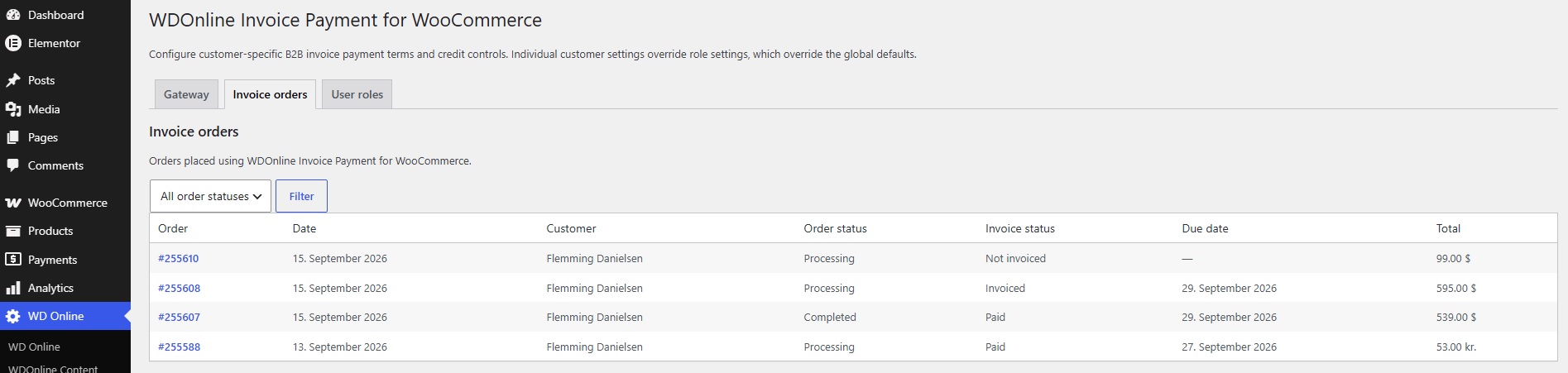
Invoice orders overview
Open the Invoice orders tab to view orders placed using WDOnline Invoice Payment.
The overview includes:
- Order number
- Order date
- Customer
- WooCommerce order status
- Invoice status
- Due date
- Order total
Use the order-status filter to narrow the list. Click an order number to open the WooCommerce order editor.
Customer My Account area
When the customer-account feature is enabled, eligible customers and customers with previous invoice orders receive an Invoice payments menu item in My Account.
Depending on your display settings, the page can show:
- Current payment terms
- Open invoice balance
- Credit limit
- Available invoice credit
- Overdue balance
- Invoice order history
- Invoice number
- Invoice date
- Due date
- Invoice status
- Order total
- Secure PDF invoice download
Customers can continue to view historical invoice orders even if invoice payment is later disabled for new orders on their account.
Invoice Payment Overview dashboard
The WordPress Dashboard widget gives store managers a quick overview of invoice-payment activity.
Available information includes:
- Invoice sales
- Number of invoice orders
- Number of invoice customers
- Average invoice order value
- Paid invoices
- Average payment time
- Outstanding invoice balance
- Overdue balance
- Invoices due within the next seven days
- Largest invoice customer
- Top five invoice customers
- Outstanding-balance development when enough historical data is available
Statistics can be filtered by predefined periods or a custom date range. The widget uses cached calculations for performance and can be refreshed manually.
Emails and order details
The plugin can display invoice instructions, payment terms, invoice dates, due dates, and invoice status in relevant WooCommerce customer emails and order details.
Because payment terms are saved on the order, the information remains consistent even if the customer's current account settings change later.
Translation
All standard plugin text is written in English and uses the WordPress translation system.
The plugin includes a POT template and is compatible with:
- WordPress language packs
- Loco Translate
- Standard PO and MO translation workflows
Custom checkout titles, descriptions, instructions, account labels, headings, and credit-limit messages can also be edited directly in the plugin settings.
WooCommerce compatibility
The plugin supports:
- Classic WooCommerce checkout
- WooCommerce Checkout Blocks
- WooCommerce High-Performance Order Storage (HPOS)
- Legacy WooCommerce order storage
Optional support diagnostics
The plugin can integrate with WD Online Support Diagnostics when that separate plugin is installed.
The diagnostics integration is optional. WDOnline Invoice Payment continues to work normally when the diagnostics plugin is not installed or is deactivated.
Diagnostic checks can help identify configuration problems without automatically sending telemetry or customer information to external services.
Troubleshooting
Invoice payment is not visible in checkout
Check the following:
- The gateway is enabled.
- The customer is logged in.
- The customer, role, or global defaults allow invoice payment.
- The order does not exceed the available credit.
- The customer is not blocked by an overdue invoice.
- Virtual orders are allowed if the cart contains only virtual products.
Individual customer settings take priority over role and global settings, so always check the customer's user profile when the result is unexpected.
The customer's available credit appears incorrect
Review the customer's open invoice orders. Unpaid invoice-payment orders count toward credit exposure even if they have not yet been assigned an invoice date or invoice number.
Also check whether an invoice has been marked as paid and whether refunds or cancellations have been recorded correctly in WooCommerce.
The due date is not displayed
A due date is calculated only after an invoice date has been entered or the order has been marked as invoiced.
The Invoice payments account link returns a 404 page
Update to the latest plugin version. If the problem remains, go to Settings → Permalinks in WordPress and click Save Changes once to rebuild the rewrite rules.
A PDF cannot be uploaded
Confirm that:
- The selected file is a valid PDF
- The file is no larger than 10 MB
- The WordPress uploads directory is writable
- The external invoice PDF feature is enabled
A user role cannot be deleted
Only roles created through this plugin can be deleted from the User roles tab. Move all users to another role before deleting a plugin-created role.
Recommended configuration workflow
For most B2B stores, the following approach provides clear control:
- Keep global invoice eligibility disabled.
- Create or select one or more approved B2B customer roles.
- Enable invoice payment and set standard terms for those roles.
- Assign approved customers to the appropriate role.
- Use individual customer settings only for exceptions.
- Set realistic credit limits and enable overdue blocking where appropriate.
- Review invoice orders and outstanding balances regularly.
This setup ensures that invoice payment is available only to approved customers while still allowing individual agreements when needed.
Plugin screenshots
Support WD Online
Our plugins are free. If you find them useful, you can support continued development. You decide the amount yourself.

Klik på linket herunder for at downloade plugin fra wordpress.org