
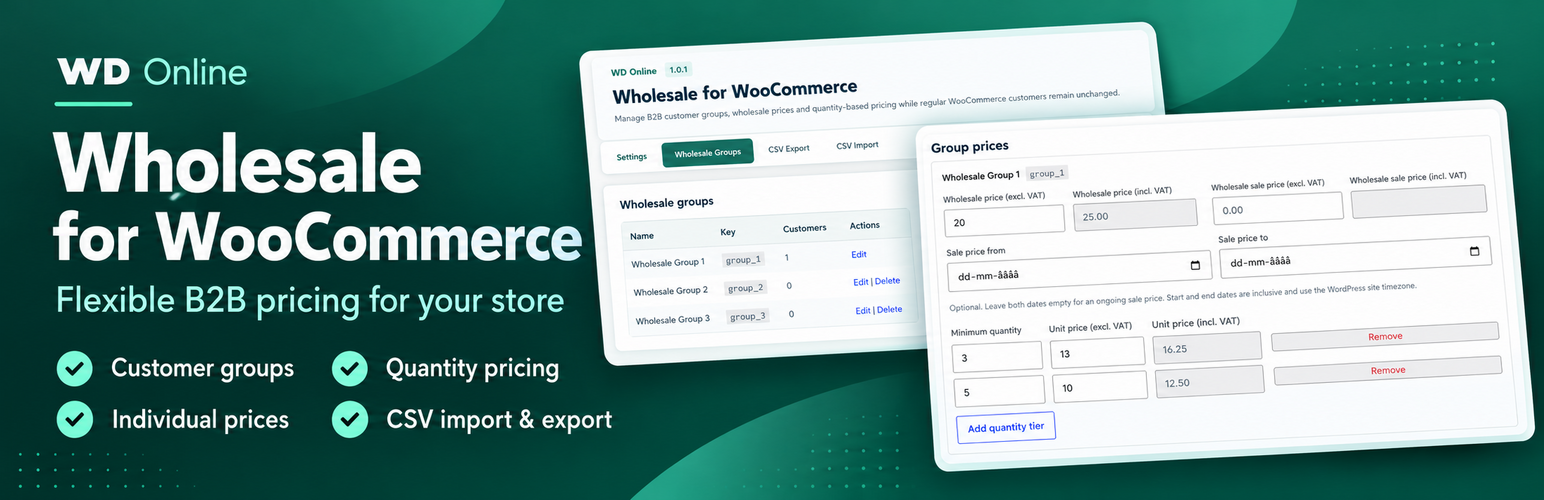
WooCommerce Wholesale Pricing Made Simple
We think this is the best Wholesale plugin for WooCommerce. It gives you flexible B2B and wholesale pricing directly inside your existing WooCommerce store. Create wholesale customer groups, set different prices for individual customers, offer quantity-based pricing and manage VAT-exempt customers—all without creating a separate wholesale shop. Whether you sell to retailers, distributors, trade customers or other businesses, the plugin helps you manage retail and wholesale customers from the same WooCommerce installation.Flexible B2B Pricing for WooCommerce
WooCommerce does not include advanced wholesale pricing by default. WDOnline Wholesale for WooCommerce adds the pricing tools you need to serve B2B customers while keeping your normal retail prices unchanged. Wholesale prices are automatically shown to logged-in customers assigned to a wholesale group. Regular customers continue to see your standard WooCommerce prices. This makes it easy to run a combined B2C and B2B WooCommerce store with one product catalogue, one inventory and one checkout.Create Multiple Wholesale Customer Groups
Different wholesale customers often require different prices. With WDOnline Wholesale for WooCommerce, you can create multiple wholesale groups and assign customers to the appropriate pricing level. For example, you can create separate groups for:- Retailers
- Distributors
- Trade customers
- Dealers
- VIP customers
- International wholesale customers
Set Wholesale Prices on Individual Products
Wholesale prices can be entered directly in the WooCommerce product editor. The plugin supports:- Simple products
- Variable products and individual variations
- Regular wholesale prices
- Scheduled wholesale sale prices
- Different prices for each wholesale group
- Individual customer-specific prices
- Quantity-based wholesale pricing
Customer-Specific Wholesale Prices
Not every business customer fits into a standard pricing group. For customers with negotiated agreements or contract prices, you can create an individual wholesale price for a specific product. The customer-specific price overrides the normal group price without affecting other wholesale customers. This is ideal for:- Contract customers
- Key accounts
- Dealers with negotiated prices
- Customer-specific price lists
- Special purchasing agreements
Quantity-Based and Tiered Wholesale Pricing
Encourage larger orders with quantity-based wholesale prices. You can define different unit prices depending on how many units the customer purchases. For example:- 1–4 units: €20 per unit
- 5–9 units: €18 per unit
- 10 or more units: €16 per unit
Compatible with WDOnline Quantity Discounts
If you also use WDOnline Quantity Discounts for WooCommerce, the plugins can compare the available prices and apply the correct pricing rule. You can configure how wholesale prices and regular quantity discounts should interact. The recommended option applies the lowest available price, ensuring that a wholesale customer does not pay more than a regular customer who qualifies for a quantity discount. A combined pricing table can be displayed to avoid confusing customers with duplicate price tables.VAT and Tax Display Controls
Choose how wholesale prices should appear on product pages:- Follow the WooCommerce tax-display setting
- Show prices excluding VAT
- Show prices including VAT
- Show both excluding and including VAT
Scheduled Wholesale Sale Prices
Create temporary wholesale promotions by adding a wholesale sale price with optional start and end dates. Scheduled wholesale prices are useful for:- Seasonal campaigns
- Dealer promotions
- Limited-time B2B offers
- Clearance sales
- Special distributor agreements
Show or Hide the Retail Price
Choose whether wholesale customers should see the normal retail price alongside their wholesale price. Displaying both prices makes the wholesale saving clear, while hiding the retail price creates a cleaner B2B purchasing experience. You can also customise the wholesale price label, colours and text sizes to match your store design.CSV Import and Export
Managing wholesale prices across a large product catalogue can take time. The built-in CSV tools make it easier to update and maintain your wholesale pricing in bulk. Export products by category, include subcategories and choose which pricing information should be included. You can then edit the data in a spreadsheet and import the updated prices back into WooCommerce. The CSV tools support:- Wholesale group prices
- Customer-specific prices
- Quantity-pricing tiers
- Scheduled sale prices
- Simple and variable products
- Category filtering
- Product-status filtering
- Validation before import
Built for Real WooCommerce Stores
WDOnline Wholesale for WooCommerce uses the existing WooCommerce product, customer, tax, cart and checkout systems. There is no need to maintain a separate B2B store or duplicate your products. Retail and wholesale customers can purchase from the same website while receiving the correct prices for their account.Key Features
- Multiple wholesale customer groups
- Dedicated wholesale customer role
- Wholesale prices for simple and variable products
- Prices for individual product variations
- Customer-specific contract prices
- Quantity-based and tiered wholesale pricing
- Scheduled wholesale sale prices
- VAT-exclusive and VAT-inclusive price display
- Individual customer tax exemption
- Optional display of regular retail prices
- Bulk CSV import and export
- Category and product-status filtering
- Compatibility with WDOnline Quantity Discounts
- Configurable price and pricing-table styling
- Translation-ready and compatible with Loco Translate
- Works with the standard WooCommerce cart and checkout
Who Is the Plugin For?
WDOnline Wholesale for WooCommerce is suitable for stores selling to:- Retailers and resellers
- Distributors
- Dealers
- Trade professionals
- Corporate customers
- International B2B customers
- Customers with negotiated contract prices
- Businesses ordering products in bulk
Start Selling Wholesale with WooCommerce
Turn your existing WooCommerce store into a flexible B2B and wholesale platform. Create customer groups, offer personalised prices, reward larger orders and manage VAT-exempt customers—all while keeping your retail and wholesale sales in one WooCommerce store. Download WDOnline Wholesale for WooCommerce and start creating flexible B2B prices today.WDOnline Wholesale for WooCommerce lets you set prices for wholesale customer groups, create prices for individual customers, and offer different unit prices at different order quantities. The plugin works with WooCommerce products and variations. Retail customers continue to use your normal WooCommerce pricing.
Requirements and installation
The plugin requires an active WooCommerce installation. Its readme specifies WordPress 6.5 or later and PHP 7.4 or later.- In WordPress, go to Plugins → Add New → Upload Plugin.
- Select the WDOnline Wholesale for WooCommerce ZIP file, install it, and activate it.
- Open WD Online → Wholesale. Its tabs are Settings, Wholesale Groups, CSV Export, and CSV Import.
- In Settings, select Enable wholesale pricing and save your changes.
- Create a group, assign customers, and enter prices on your products as described below.
1. Create wholesale groups
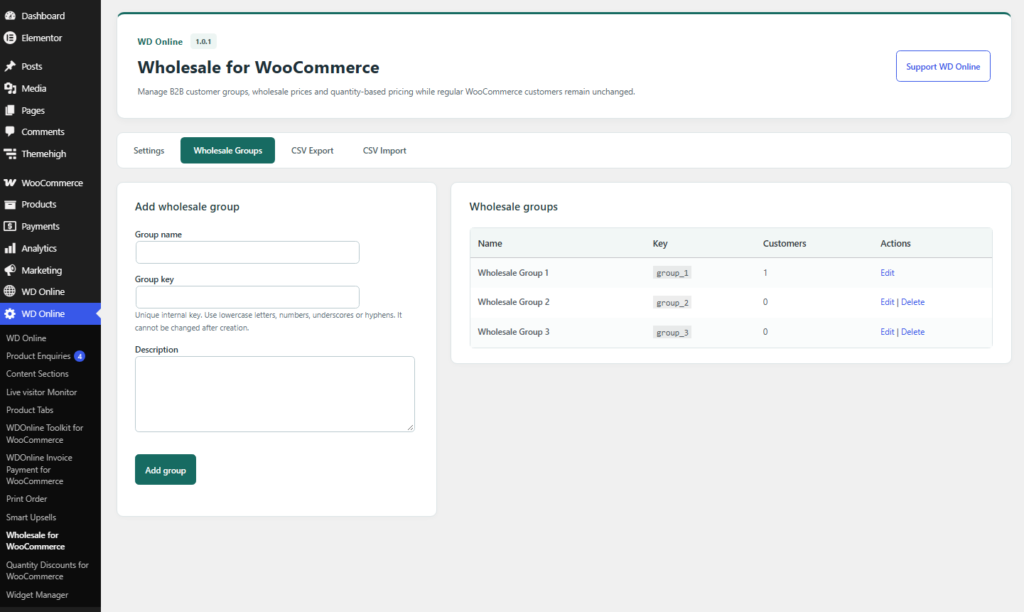
Open WD Online → Wholesale → Wholesale Groups. Enter a Group name (for example, Trade Partners), a unique Group key (for example,trade_partners), and an optional description. Select Add group.
The group key can contain lowercase letters, numbers, underscores, and hyphens. Choose it carefully: it cannot be changed after the group is created. You can edit a group's name or description later. A group's Customers count appears in the list; the Delete action is shown only when no customers are assigned to it.
You can create several groups when customers need different prices for the same products.
2. Assign wholesale customers
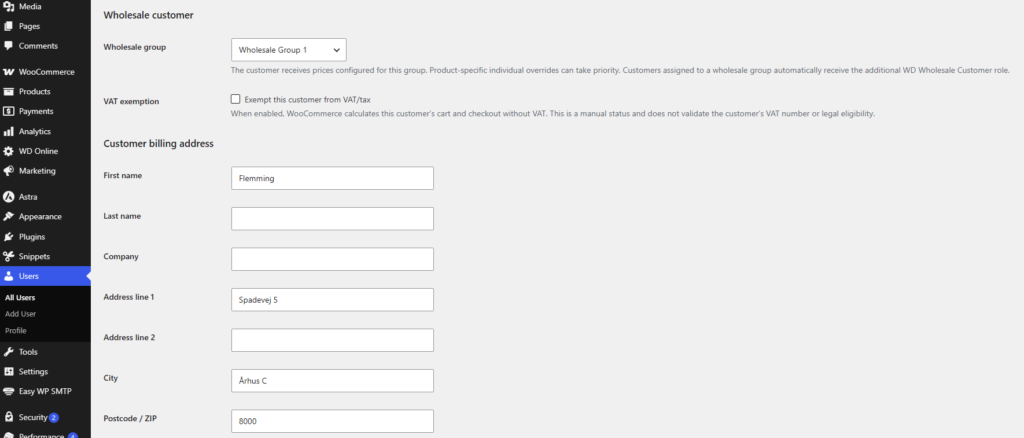
Open Users → All Users, edit a customer's profile, and find Wholesale customer. Select a Wholesale group, then save the profile. Choose Not a wholesale customer to remove the assignment. A customer assigned to a group also receives the WD Wholesale Customer role. On Users → All Users, you can sort or filter by Wholesale Group and use Assign Wholesale Group… with the user bulk actions to assign or remove a group for multiple users. The same profile section has an optional Exempt this customer from VAT/tax checkbox. This manually marks that customer as tax exempt in WooCommerce's cart and checkout. It does not verify a VAT number or determine whether the customer qualifies for an exemption; check eligibility before enabling it. Important: A customer needs a wholesale group assignment to receive wholesale pricing, including individual customer prices. Test prices while logged in as a customer from the intended group.3. Set group prices on a product
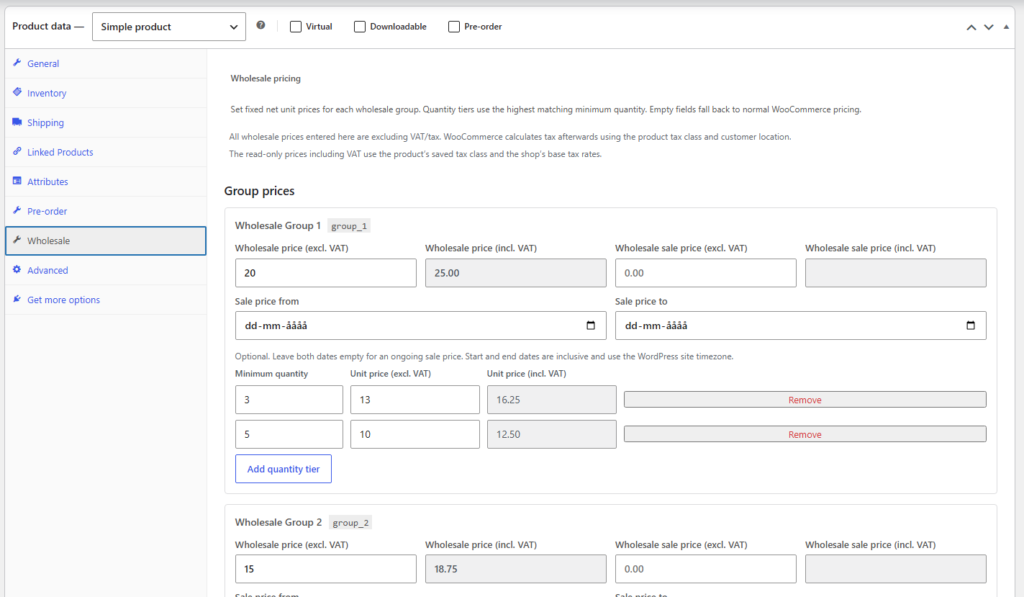
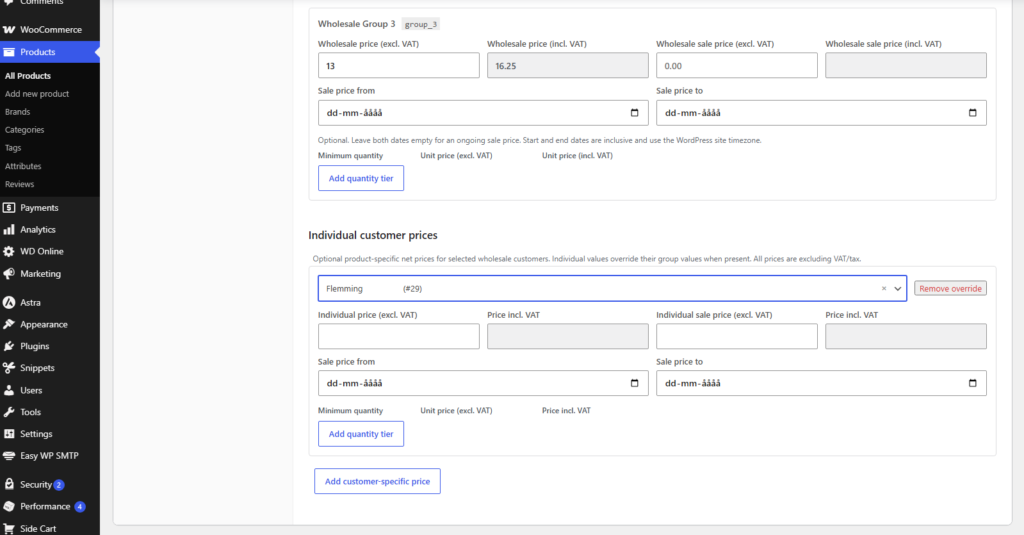
Edit a WooCommerce product and open its Wholesale pricing panel in the Product data area. A pricing card appears for each group. For a group you can enter:- Wholesale price (excl. VAT): the regular wholesale unit price.
- Wholesale sale price (excl. VAT): an optional temporary or ongoing unit price.
- Sale price from / Sale price to: optional date limits. Both boundaries are inclusive and follow your WordPress site's timezone. Leave both dates empty for an ongoing sale price.
- Minimum quantity / Unit price (excl. VAT): quantity pricing tiers; select Add quantity tier for each additional threshold.
Variable products
You can set group prices on the variable parent product. To override them for a variation, expand the variation in Product data → Variations and open Wholesale pricing (excl. VAT). Enter variation prices and update the product. Empty variation fields inherit the relevant parent values. This allows one base price for a group with exceptions for particular sizes or options.4. Give one customer an individual price
On the product's Wholesale pricing panel, find Individual customer prices and select Add customer-specific price. Search for a wholesale customer, enter the customer's individual price, optional sale price and dates, and any quantity tiers. Update the product. Individual values take priority over group values when provided. For variations, group and customer values can be inherited from the parent; variation-specific values take precedence where present. Use Remove override on the customer card to remove the product-specific exception, then update the product.5. Choose how prices appear
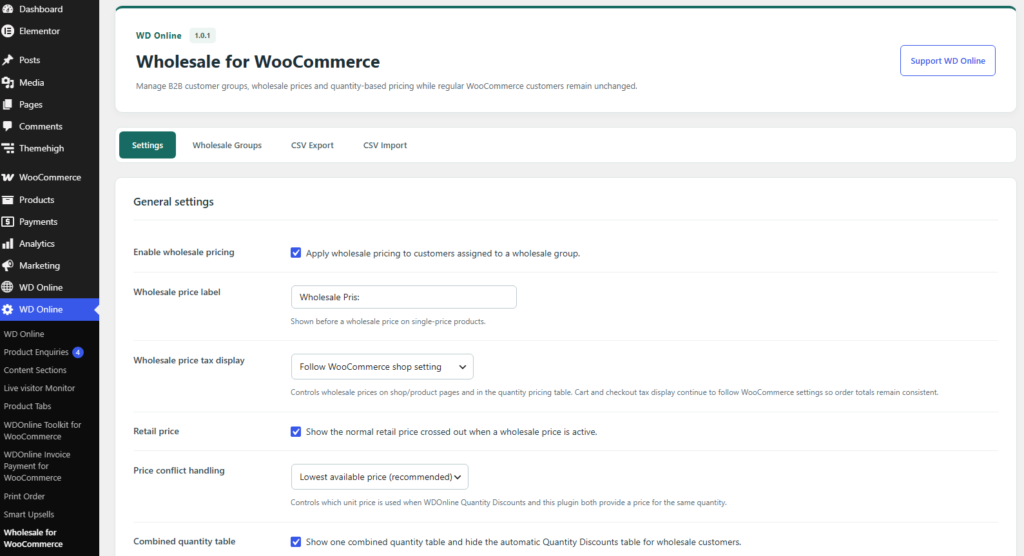
Open WD Online → Wholesale → Settings:- Wholesale price label: change the text shown before the wholesale price for a product displaying one price.
- Wholesale price tax display: follow the WooCommerce shop setting, show excluding VAT, show including VAT, or show both amounts. This controls shop and product prices and the quantity table. Cart and checkout tax display still follows WooCommerce settings.
- Retail price: optionally show the normal retail price crossed out beside an active wholesale price.
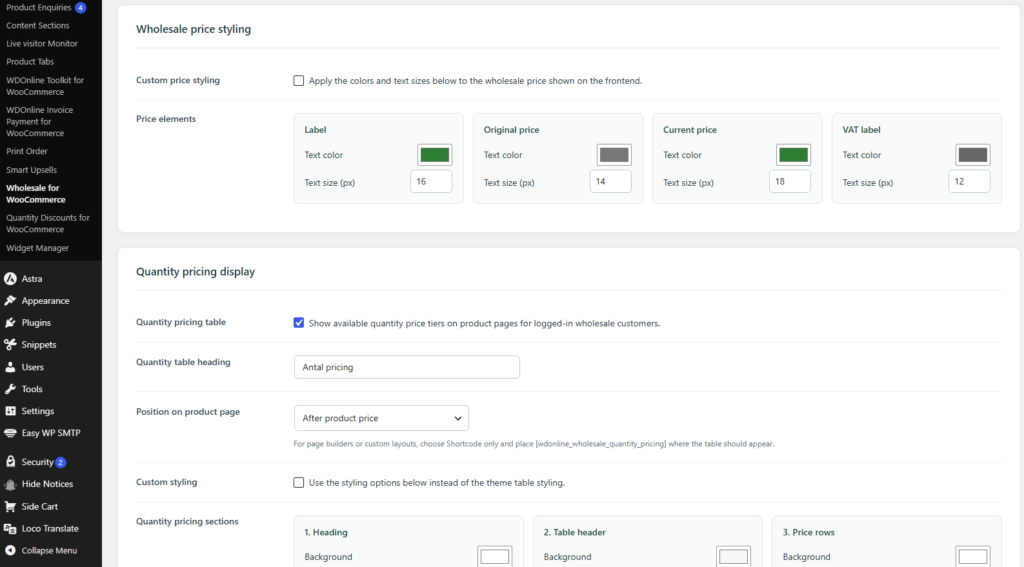
- Custom price styling: enable and choose text colors and sizes separately for the label, original price, current price, and VAT label.
Quantity pricing table
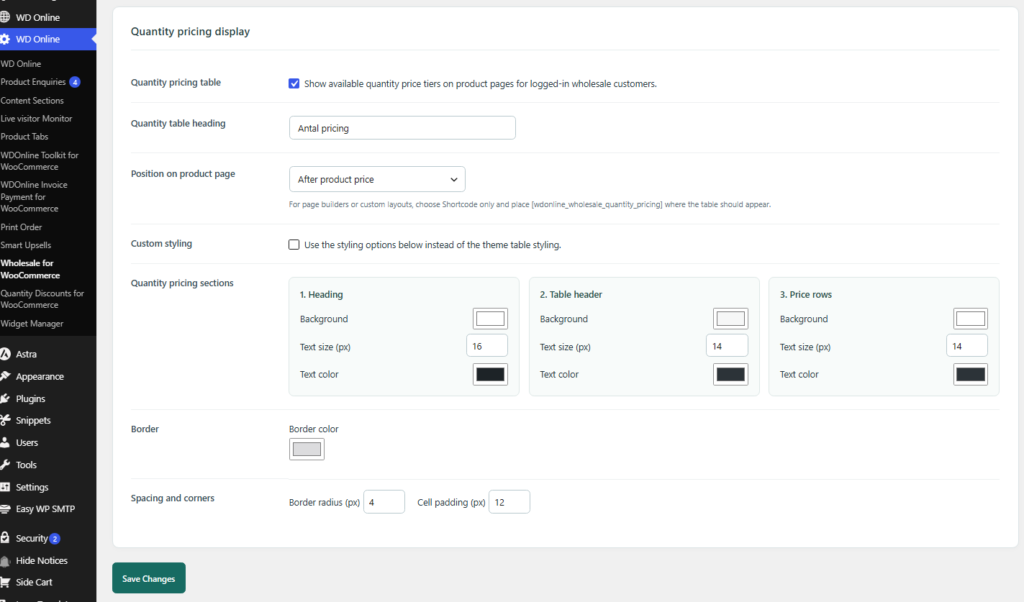
Enable Quantity pricing table to show available quantity tiers on product pages for logged-in wholesale customers. Set its heading and choose a location such as before or after the price, after the short description, around the Add to cart button, after product meta, or below the product summary. For a custom layout, choose Shortcode only and place6. Use it with WDOnline Quantity Discounts
If you also use WDOnline Quantity Discounts, open Settings → Price conflict handling and choose how the unit price is selected when both plugins offer a price for the same quantity:| Option | Result |
|---|---|
| Lowest available price (recommended) | Use the lower available price. |
| Wholesale price wins | Prefer the wholesale price when one applies. |
| Quantity discount price wins | Prefer the Quantity Discounts price when one applies. |
7. Export wholesale prices to CSV
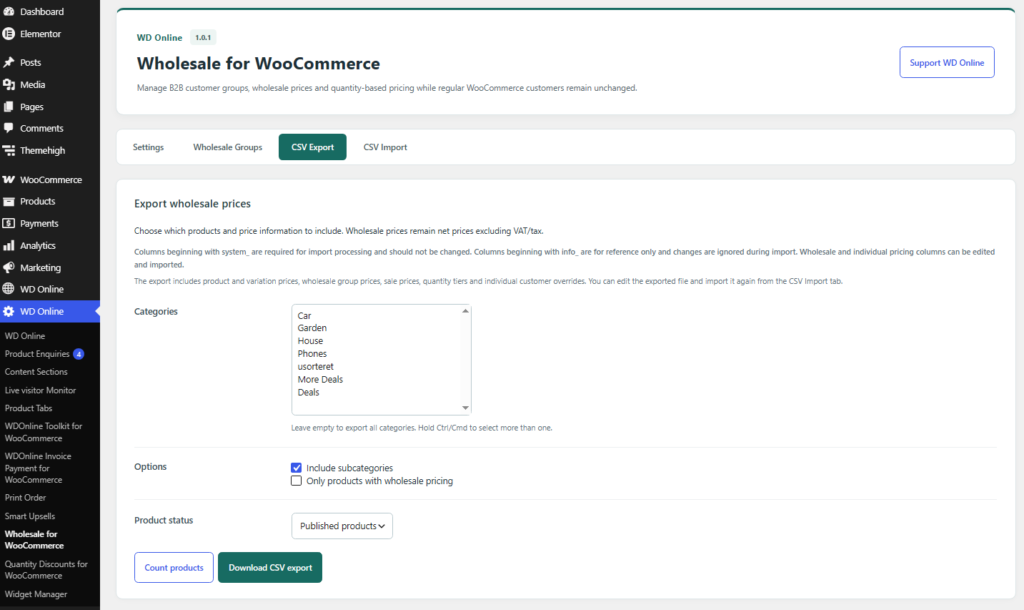
Open WD Online → Wholesale → CSV Export. Optionally select one or more Categories (hold Ctrl or Cmd for multiple selections), choose whether to include subcategories, and select Only products with wholesale pricing if needed. Choose a Product status: published, all, draft, or private. Select Count products to preview how many products match without downloading a file. Select Download CSV export to download a semicolon-delimited UTF-8 CSV containing relevant products and variations, group prices, individual prices, sale dates, and quantity tiers. The file also includes reference information such as the product name, SKU, tax class, and normal price including VAT. The export is useful as a starting template for bulk edits. Keep an untouched copy before editing it.8. Import edited prices
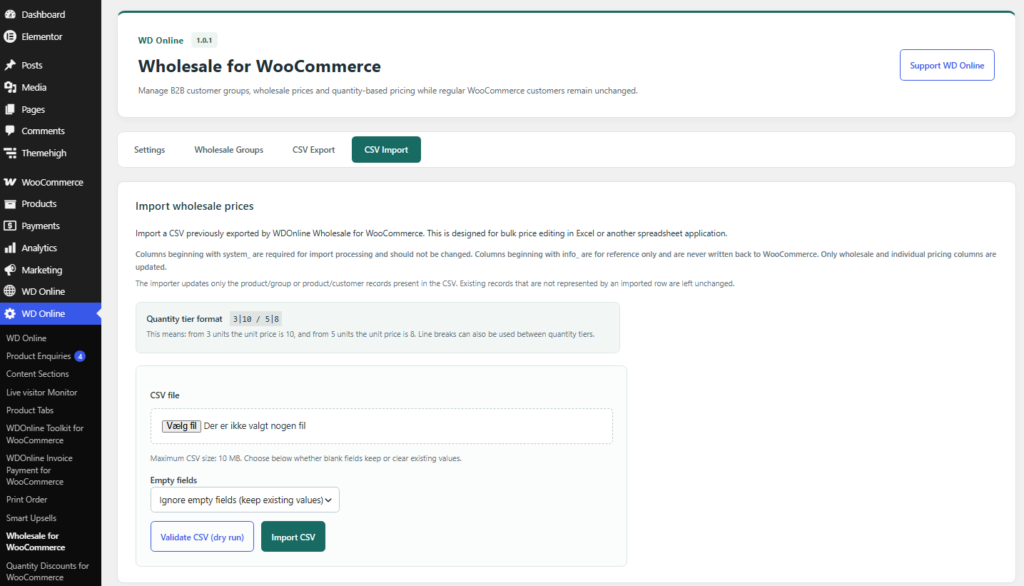
Open the exported CSV in a spreadsheet application and edit the wholesale or individual pricing fields. The quantity tier format is3|10 / 5|8, meaning a unit price of 10 from 3 units and 8 from 5 units. You can also separate tiers with line breaks.
Keep the system_ columns and their identifiers intact; the importer needs them to match rows to records. info_ columns are for reference and changes to them are not written to WooCommerce. In particular, editing the informational product status or regular price does not update those WooCommerce values. Preserve the product and customer or group identifiers for the records you intend to update.
- Save the edited spreadsheet as a CSV file.
- Open WD Online → Wholesale → CSV Import and select the file.
- Under Empty fields, choose Ignore empty fields (keep existing values) or Clear values when empty, according to whether blanks should preserve or remove existing pricing values.
- Select Validate CSV (dry run) to check the file without making changes; review any reported errors.
- When the result looks correct, select Import CSV. Review the completion summary and test representative products.
Troubleshooting
- A customer sees retail prices: make sure wholesale pricing is enabled, the customer is logged in and assigned to a group, and that product has a relevant group or individual price. Check any variation-specific values as well.
- A quantity tier is not applied: check the minimum quantity and test the quantity in the cart. Make sure the customer belongs to a wholesale group and the product has a valid tier price.
- The tax amount looks unexpected: verify the product tax class, WooCommerce tax settings, customer's location, and any manual VAT exemption. The read-only including VAT estimate in the editor uses shop base rates, while customer-facing tax is calculated by WooCommerce.
- A CSV change did not affect a product: confirm you edited an importable wholesale or individual pricing column and kept the
system_identifiers. Run the dry-run validation and check the import summary.info_fields do not update products. - Two pricing tables appear: when WDOnline Quantity Discounts is active, enable Combined quantity table and check the product page using a logged-in wholesale account.
Do you have suggestions for improvements to this plugin?
Plugin screenshots
Support WD Online
Our plugins are free. If you find them useful, you can support continued development. You decide the amount yourself and we see any amount as recognition that our plugin helps others.

Click the link below to download the plugin from wordpress.org.