
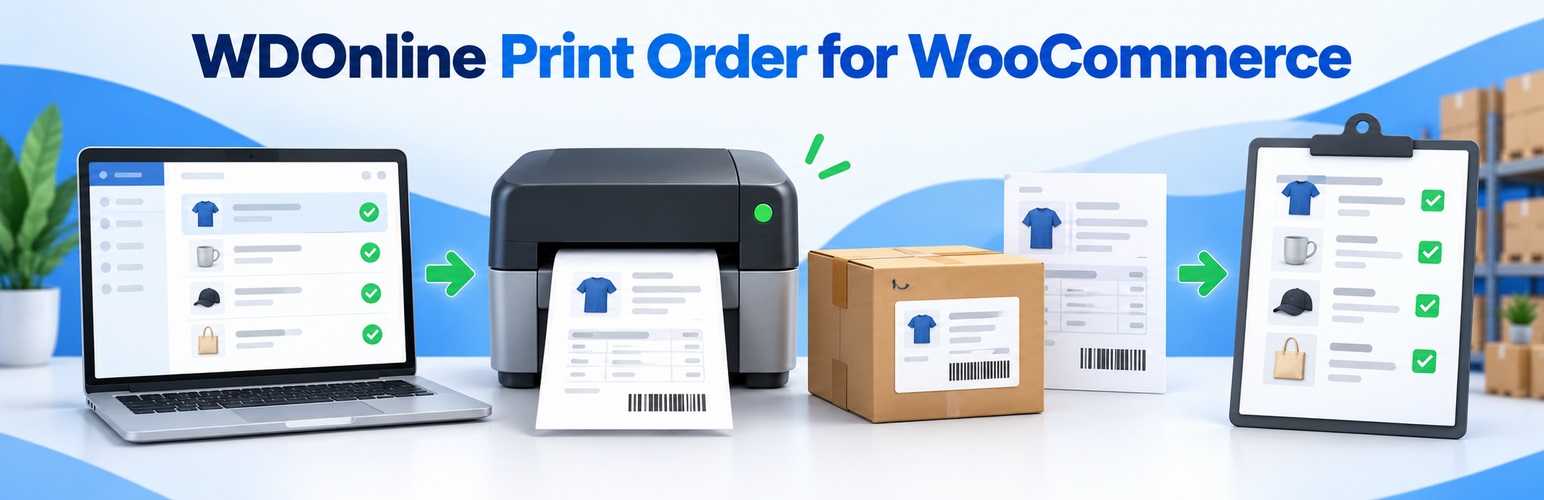
Print professional order confirmations, packing slips and aggregated pick lists directly from WooCommerce
WDOnline Print Order for WooCommerce gives you a fast and practical way to prepare orders for printing, packing and fulfilment without relying on external services.
Print individual orders or select multiple orders from the WooCommerce order overview. Generate clean order confirmations, packing slips or one aggregated pick list containing all products required across the selected orders.
The plugin is designed for stores that want a simple, efficient and privacy-friendly print workflow inside WordPress.
Make order fulfilment faster
Instead of opening and processing every order separately, you can select multiple WooCommerce orders and create a combined pick list.
Identical products are grouped together, so your warehouse or packing team can quickly see:
- The total quantity required
- The related order numbers
- The quantity required for each individual order
- Product name and SKU
- Optional GTIN, UPC, EAN or ISBN
- Optional product images
Products can be sorted by order line, product name, SKU, GTIN or product category.
Professional packing slips and order confirmations
Create printer-friendly documents directly from the WooCommerce administration.
You decide which information should appear, including:
- Company name and contact details
- Company logo
- Billing and shipping addresses
- Payment and shipping methods
- Product SKU
- GTIN, UPC, EAN or ISBN
- Product images
- Customer notes
- Prices and order totals
- Product and variation metadata
Prices can automatically be hidden on packing slips while remaining visible on order confirmations.
Full control over product metadata
WooCommerce extensions often add useful information to individual order lines, but they can also add technical data that should never appear on customer-facing documents.
WDOnline Print Order for WooCommerce gives you complete control over the metadata printed on packing slips and order confirmations.
For each document type, you can choose to:
- Show all metadata except specified exclusions
- Print only selected metadata
- Discover metadata keys used in recent orders
- Add metadata to a document with one click
- Replace technical metadata names with clear custom labels
Packing slips and order confirmations can use different metadata rules.
Track printing and packing status
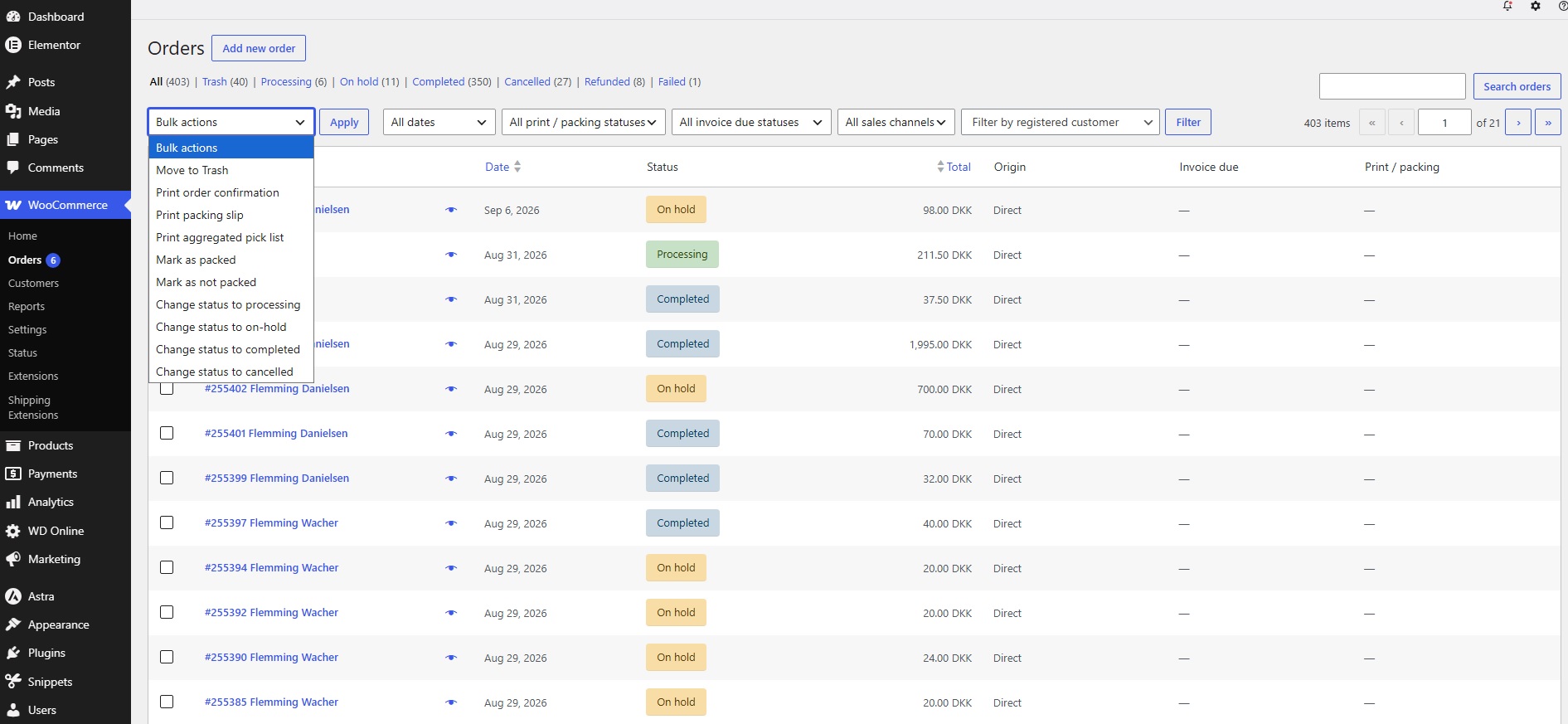
The WooCommerce order overview shows whether an order has been printed or marked as packed.
You can:
- See when an order was last printed
- See how many times it has been printed
- Mark individual orders as packed or not packed
- Update multiple orders using bulk actions
- Filter the order overview by printed or packing status
This makes it easier to avoid printing or packing the same order twice.
Built for WooCommerce
The plugin integrates directly with the WooCommerce order administration and supports both the traditional order storage system and WooCommerce High-Performance Order Storage (HPOS).
No separate dashboard, account or external print service is required.
Privacy-friendly by design
Customer and order information remains on your own WordPress website.
The plugin does not send:
- Order information
- Customer details
- Product data
- Analytics
- Telemetry
- Diagnostic information
to WD Online or any third-party service.
Key features
- Print order confirmations
- Print packing slips
- Print multiple selected orders
- Generate aggregated pick lists
- Show quantities for each related order
- Optional product images on pick lists
- Optional GTIN on pick lists
- Product sorting by name, SKU, GTIN or category
- Packing and printing status tracking
- Bulk packing status management
- Custom company details and logo
- Optional automatic print dialog
- Separate metadata rules for each document type
- Custom metadata labels
- WooCommerce HPOS compatibility
- Translation-ready
- Loco Translate compatible
- No external services or telemetry
A practical printing workflow for growing WooCommerce stores
Whether you process a few orders each day or prepare larger batches for warehouse fulfilment, WDOnline Print Order for WooCommerce helps reduce manual work and makes order information easier to use.
Install the plugin, configure your preferred document content and start printing directly from WooCommerce.
WD Online Support Diagnostics is a troubleshooting tool designed to make it easier to identify technical problems with WD Online WordPress plugins.
Instead of asking you to manually collect WordPress, PHP, database and plugin information, the diagnostics tool gathers the relevant technical information in one support report.
The tool does not automatically send any information to WD Online. You remain in control of the report and decide if you want to share it with us.
What does the diagnostics tool check?
WD Online Support Diagnostics can check general information about your WordPress installation as well as plugin-specific functionality.
Depending on the WD Online plugin you are using, the report may include checks for:
- WordPress and PHP versions
- Database version and structure
- Plugin versions
- Required plugin settings
- WooCommerce dependencies and features
- AJAX and REST API functionality
- WordPress cron events
- Required WordPress hooks
- Database tables and options
- Configuration problems
- Known error conditions
- Plugin-specific functionality
Each compatible WD Online plugin can provide its own diagnostic checks.
A result marked Good normally means that the check passed. A Warning means something may require attention but does not necessarily indicate a problem. A Critical result normally means that something required by the plugin is missing or incorrectly configured.
If you experience a problem
If one of our plugins is not working as expected, we recommend creating a diagnostic report before contacting support.
1. Open Support Diagnostics
In your WordPress administration area, go to:
WD Online → Support Diagnostics
Review the diagnostic results. In some cases, the report may already identify the problem.
2. Start diagnostic logging
Click:
Start 15-minute diagnostic logging
Logging starts immediately. You do not have to wait 15 minutes.
The 15-minute period is simply the maximum time the temporary logging session remains active.
3. Reproduce the problem
While diagnostic logging is active, perform the action that causes the problem.
For example:
- visit the affected page
- place a test order
- change the relevant setting
- reproduce the frontend error
- perform the action that does not work as expected
Compatible WD Online plugins may record technical diagnostic events during this process.
4. Stop diagnostic logging
As soon as you have reproduced the problem, return to:
WD Online → Support Diagnostics
and click:
Stop diagnostic logging
You do not need to wait until the full 15 minutes have passed.
Events recorded before you stop logging remain available in the support report.
5. Create the support report
You can then:
- copy the support report
- download the report as TXT
- download the report as JSON
Send the report to WD Online together with a short description of the problem.
It is especially helpful if you tell us:
- which WD Online plugin is affected
- what you expected to happen
- what actually happened
- how we can reproduce the problem
- whether the problem happens every time or only occasionally
What information is sent to WD Online?
Nothing is sent automatically.
WD Online Support Diagnostics stores diagnostic information locally on your WordPress installation. You must actively copy or download the report and send it to us.
Starting diagnostic logging does not establish a connection to WD Online and does not automatically submit telemetry or support information.
Privacy
The diagnostics system is designed to collect technical information rather than personal information.
Diagnostic reports should not normally contain:
- passwords
- WordPress security salts
- database passwords
- API secrets or private API keys
- authentication cookies
- payment information
- complete customer or order information
- customer email addresses
- visitor IP addresses
- other unnecessary personally identifiable information
Individual WD Online plugins are also designed to expose only the information required to diagnose their own functionality.
Temporary diagnostic logging
Diagnostic logging is intentionally temporary.
When enabled, compatible WD Online plugins can record diagnostic events for up to 15 minutes.
You can stop the logging session at any time.
Starting a new diagnostic logging session clears events from the previous temporary session, allowing you to create a clean report for the problem you are currently investigating.
Before contacting support
For the fastest possible troubleshooting, please:
- Update the affected WD Online plugin to the latest version.
- Update WD Online Support Diagnostics to the latest version.
- Open WD Online → Support Diagnostics.
- Check for Warning or Critical results.
- Start diagnostic logging.
- Reproduce the problem.
- Stop diagnostic logging.
- Download or copy the support report.
- Send the report to WD Online together with a description of the problem.
This gives us much more useful information about what is happening on your website and can significantly reduce the time needed to identify the cause of a problem.
Click on “Download latest version” below to download the latest version of our diagnostic tool.
You install the tool as you normally would when you add a plugin to your WordPress installation.
Once you have run the tool as described, you can send the report to us at this email: mail@wdonline.dk
Installation
- Download the plugin ZIP file.
- Log in to your WordPress administration.
- Go to Plugins → Add New Plugin.
- Select Upload Plugin.
- Choose the ZIP file and select Install Now.
- Activate WDOnline Print Order for WooCommerce.
WooCommerce must be installed and activated before the plugin can be used.
Plugin settings
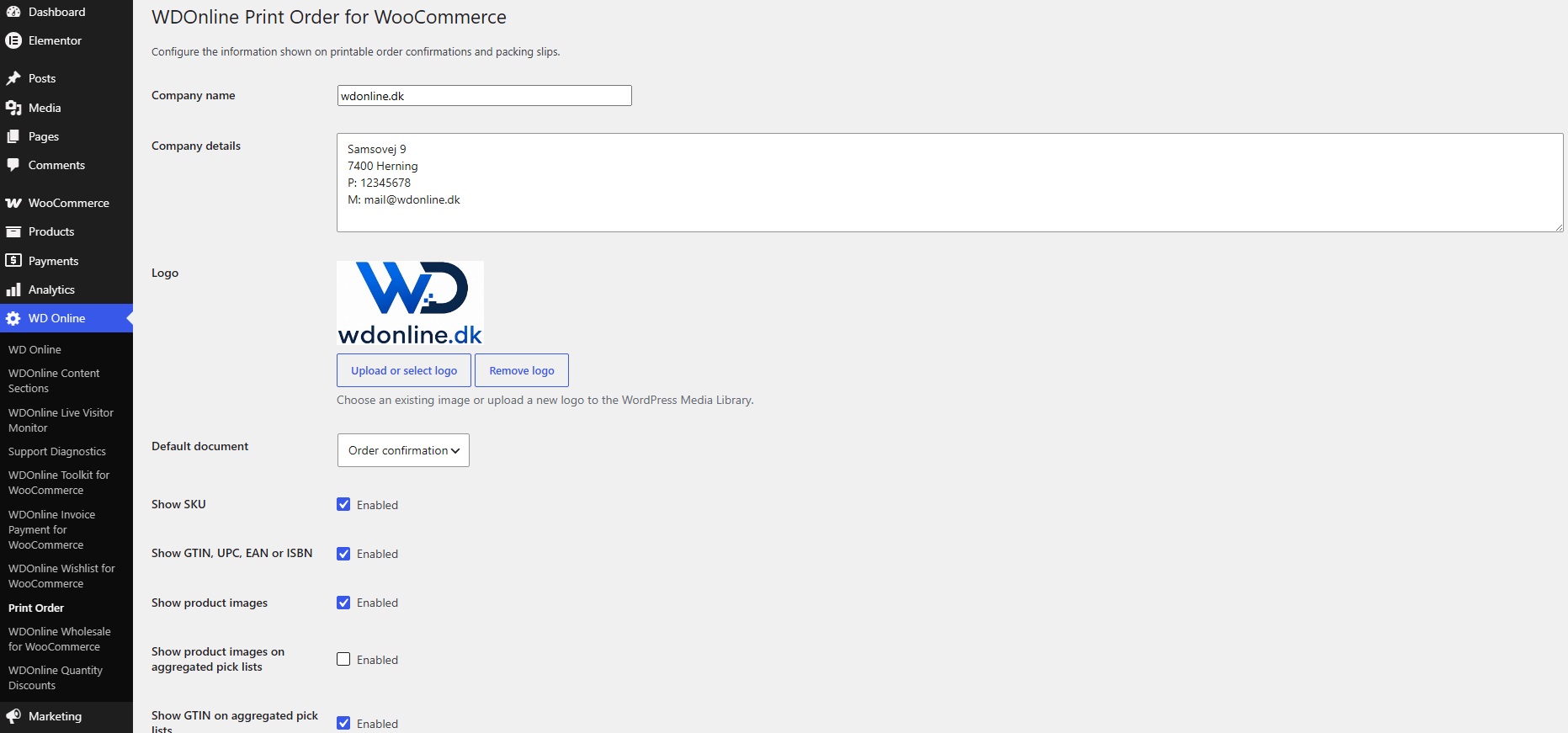
Go to WD Online → Print Order in the WordPress administration to configure the plugin.
Company information
Enter the information displayed at the top of printed documents:
- Company name: The name of your company or store.
- Company details: Address, company registration number, telephone number, email address or other relevant information.
- Logo: Upload a new logo or select an existing image from the WordPress Media Library.
If no logo is selected, the company name is displayed instead.
Default document
Select which document type should be used as the default:
- Order confirmation
- Packing slip
Product information
The following information can be enabled or disabled:
- Show SKU
- Show GTIN, UPC, EAN or ISBN
- Show product images
- Show customer note
- Hide prices on packing slips
The GTIN value uses the standard WooCommerce global unique ID field. If a variation does not have its own value, the plugin can use the value from the parent product.
Aggregated pick list
The aggregated pick list has separate display settings:
- Show product images on aggregated pick lists
- Show GTIN on aggregated pick lists
When product images are enabled, the variation image is used when available. Otherwise, the main product image is used. Products without an image are displayed without an empty image frame.
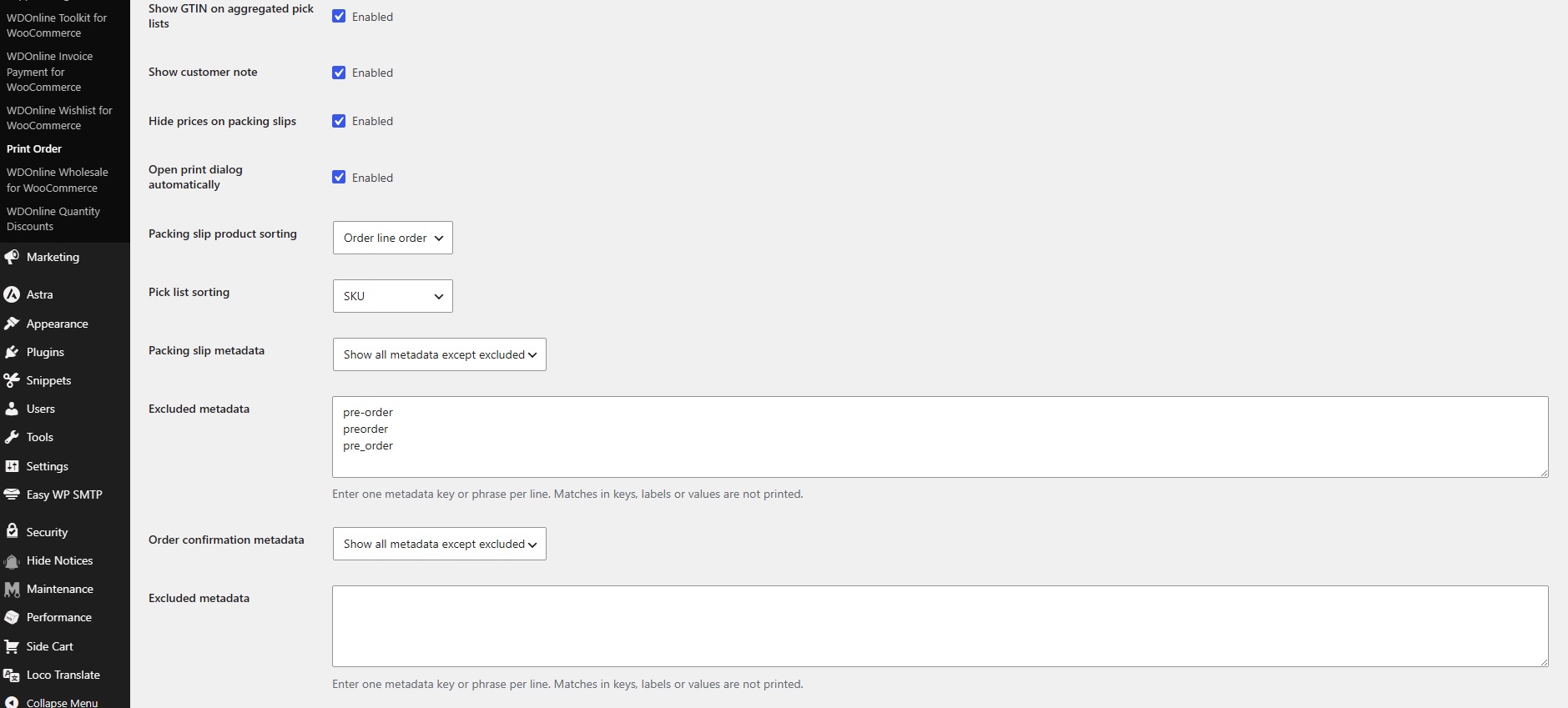
Automatic print dialog
Enable Open print dialog automatically if the browser’s print window should open immediately when a document is generated.
If this option is disabled, use the Print button at the top of the document.
Product sorting
Packing slip product sorting
Choose how products should be sorted on packing slips:
- Order line order
- Product name
- SKU
- GTIN
- Product category
Pick list sorting
The same sorting options are available for aggregated pick lists.
Metadata settings
WooCommerce and other extensions can add metadata to individual order items. This may include product options, variation information, warehouse locations, custom text or technical information.
Packing slips and order confirmations have separate metadata settings.
Show all metadata except excluded
Select Show all metadata except excluded to print available order item metadata while removing unwanted information.
Enter one metadata key or phrase per line in the Excluded metadata field.
The plugin checks metadata keys, displayed labels and values. Any matching metadata is excluded from the document.
Example:
_line_discount
_reduced_stock
pre-order
internal_note
Only show selected metadata
Select Only show selected metadata to print only specific metadata fields.
Enter one exact metadata key per line:
warehouse_location
supplier_sku
custom_text
All metadata not included in this list is omitted from the selected document type.
Custom metadata labels
A custom printed label can be added after the metadata key using a vertical bar:
warehouse_location|Warehouse location
supplier_sku|Supplier SKU
The value before the vertical bar must be the exact metadata key. The value after it is the label displayed on the printed document.
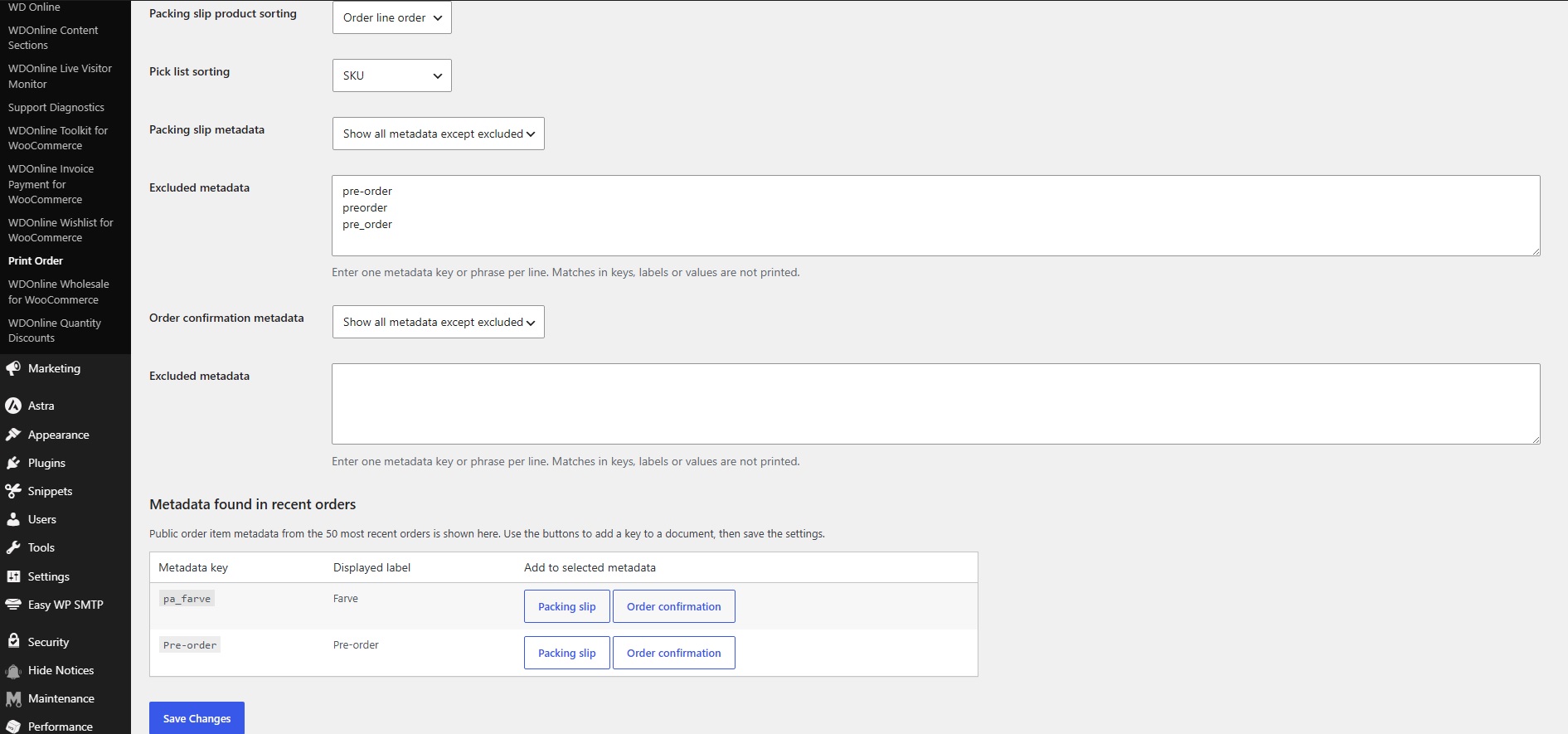
Metadata found in recent orders
The settings page displays public order item metadata found in the 50 most recent WooCommerce orders.
Use the buttons beside a metadata key to add it to:
- Packing slips
- Order confirmations
After adding the required fields, select Save Changes.
Technical metadata beginning with an underscore may not appear in the list of detected public metadata. It can still be entered manually if it is required.
Printing an individual order
- Go to WooCommerce → Orders.
- Open the required order.
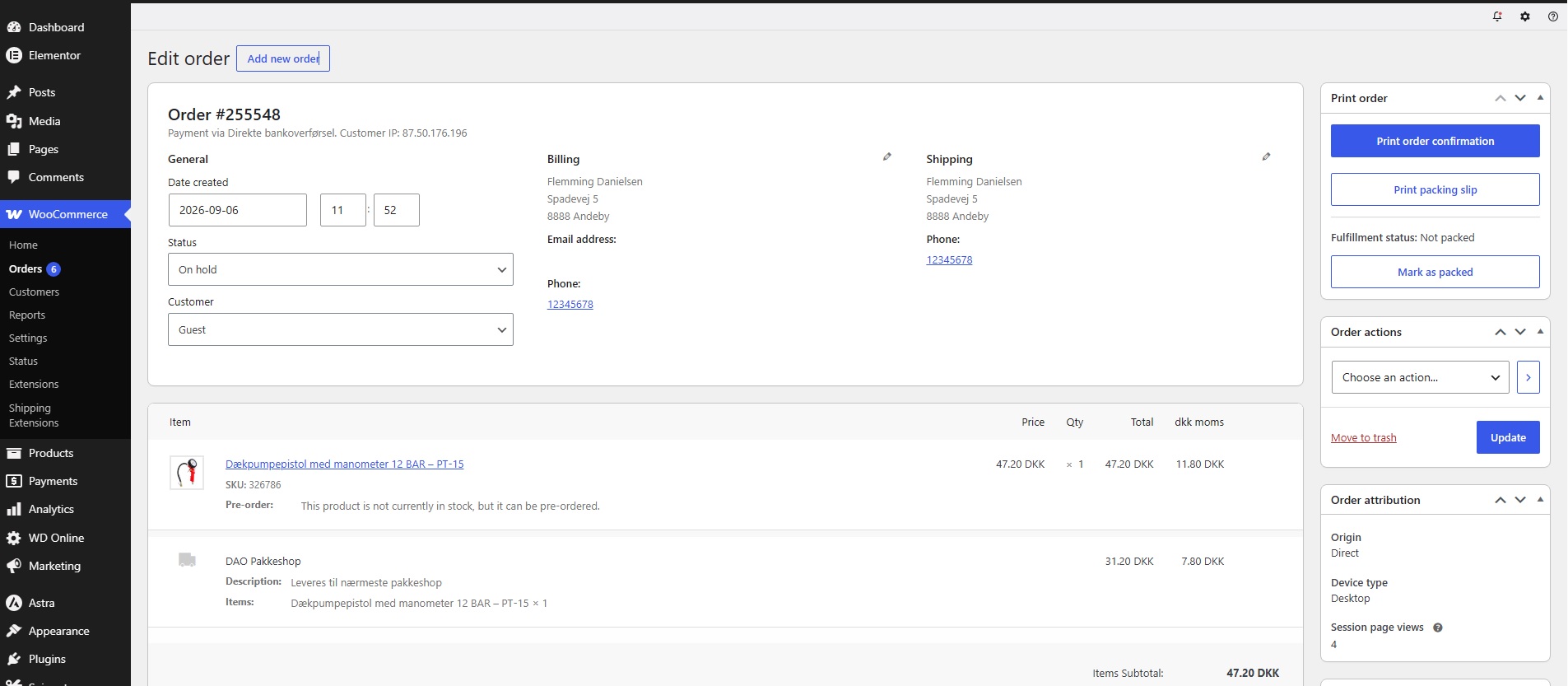
- Find the Print order panel.
- Select either:
- Print order confirmation
- Print packing slip
- Use the browser’s print dialog to print the document or save it as a PDF.
The print view opens in a separate browser tab when supported.
Printing multiple orders
- Go to WooCommerce → Orders.
- Select the required orders using the checkboxes.
- Open the Bulk actions menu.
- Choose one of the following:
- Print order confirmation
- Print packing slip
- Print aggregated pick list
- Select Apply.
All selected orders are opened in one printable document.
For performance and security, a maximum of 100 orders can be included in one print operation.
Aggregated pick lists
An aggregated pick list combines identical products from all selected orders.
For each product, the list shows:
- Product name
- SKU
- Optional GTIN
- Optional product image
- Total quantity required
- Related order numbers
- Quantity required for each order
Example:
#1042 (×3), #1048 (×2), #1051 (×5)
This means that three units are required for order 1042, two units for order 1048 and five units for order 1051.
Use the checkbox beside each product as a manual picking indicator.
Print and packing status
The WooCommerce order overview includes a Print / packing column.
This column shows whether an order has been printed and whether it has been marked as packed.
The order panel also displays:
- The most recent print date
- The number of times the order has been printed
- The current packing status
Mark an order as packed
Open the order and select Mark as packed in the Print order panel.
Select Mark as not packed to reverse the status.
Update multiple orders
Packing status can also be changed using WooCommerce bulk actions:
- Select the required orders.
- Open Bulk actions.
- Choose Mark as packed or Mark as not packed.
- Select Apply.
Filter orders by status
Use the status filter above the WooCommerce order list to display:
- Printed orders
- Orders not yet printed
- Packed orders
- Orders not yet packed
Closing the print view
Use the Close button at the top of the print page.
When the print view was opened in a separate tab, the tab closes and returns you to the order. When printing multiple orders in the current tab, the plugin returns to the previous order overview where possible.
Translation
All user-facing plugin text is translation-ready.
The plugin can be translated through WordPress.org or with translation plugins such as Loco Translate.
Text domain:
wdonline-print-order-for-woocommerce
Compatibility
The plugin supports:
- WordPress 6.4 or later
- PHP 7.4 or later
- WooCommerce 8.2 or later
- WooCommerce High-Performance Order Storage (HPOS)
- Classic WooCommerce order storage
Privacy
The plugin processes order information locally on your WordPress website.
It does not automatically send customer information, order data, product information, telemetry or diagnostic reports to WD Online or any external service.
Troubleshooting
If print actions are unavailable, confirm that:
- WooCommerce is installed and activated.
- Your user account has permission to manage WooCommerce.
- The plugin is activated.
- Pop-ups are permitted if an individual print document does not open.
- Browser print headers and footers are disabled in the browser’s print settings if they should not appear.
If product information is missing, check that the relevant display option is enabled under WD Online → Print Order.
If metadata does not appear, verify that:
- The correct metadata mode is selected.
- The exact metadata key has been entered.
- The metadata exists on the order item.
- The settings have been saved.
Plugin screenshots
Support WD Online
Our plugins are free. If you find them useful, you can support continued development. You decide the amount yourself.

Klik på linket herunder for at downloade plugin fra wordpress.org