
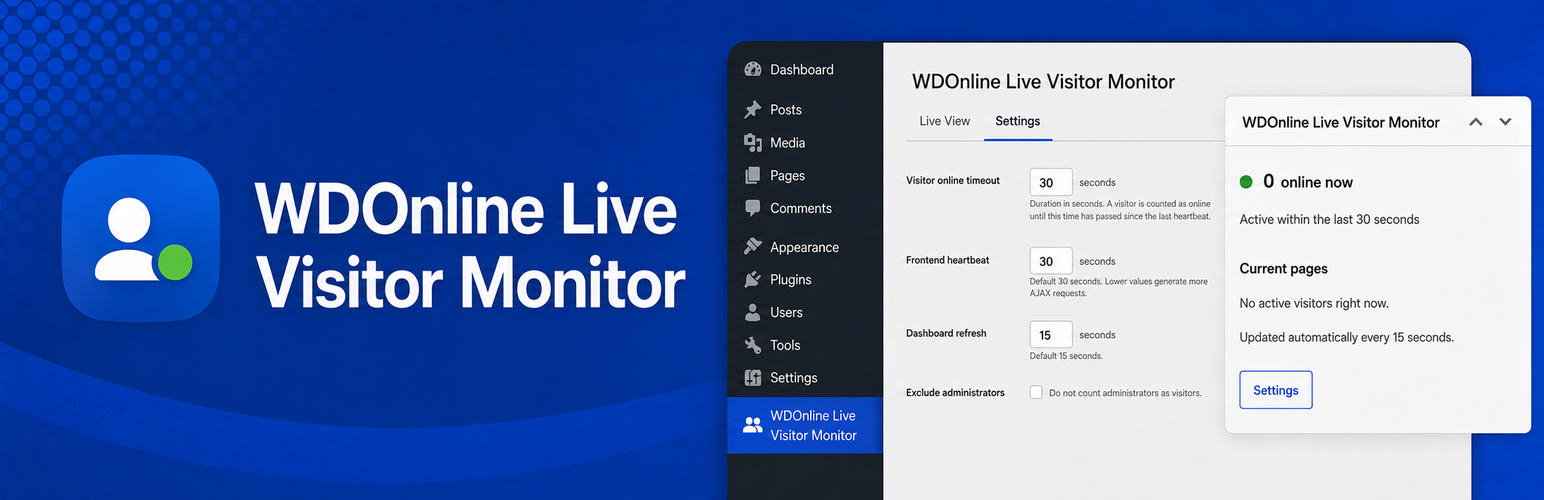
Live Online Visitors gives you a simple way to see who is active on your WordPress website right now — directly from the WordPress dashboard.
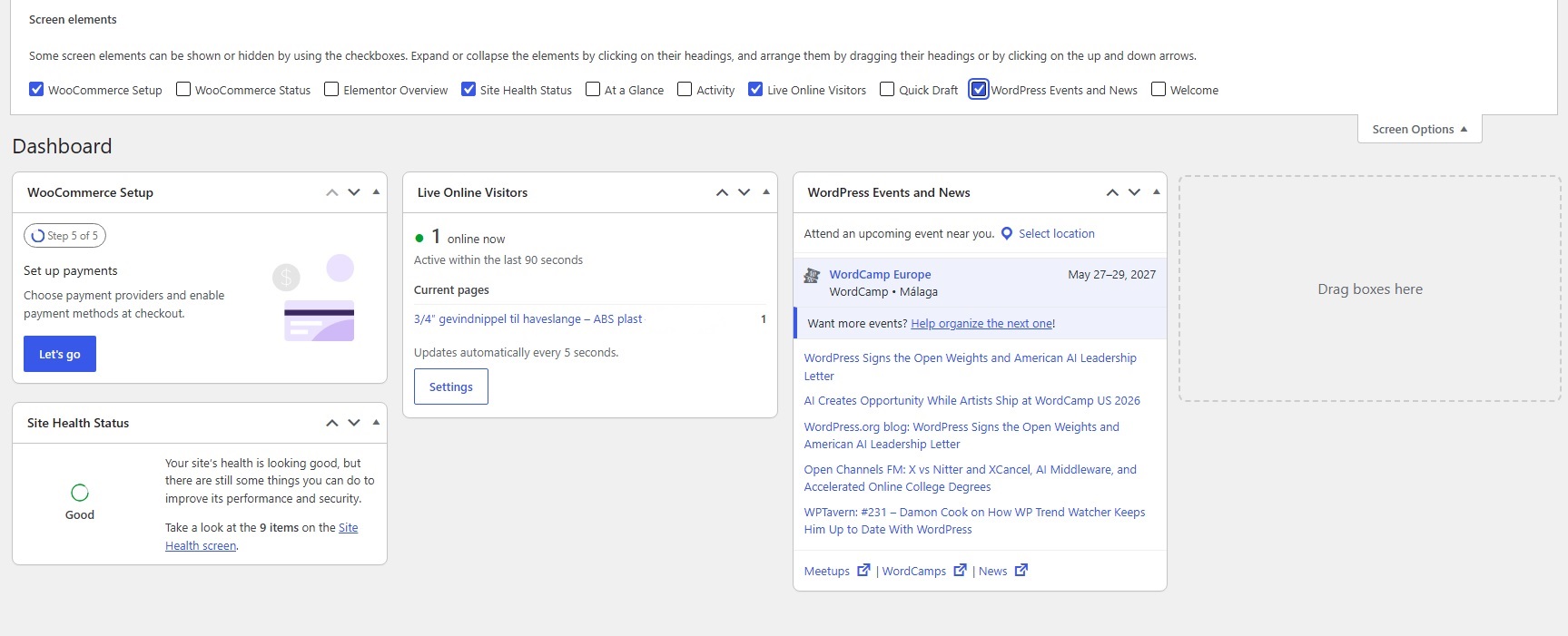
Instead of opening an external analytics service, you can quickly check the number of active visitors and see which pages they are currently viewing.
The plugin updates automatically, so there is no need to refresh the browser manually.
Features
- See the number of visitors currently active on your website.
- View the pages your visitors are currently browsing.
- See the number of active visitors for each page.
- Click page titles to open the visited page.
- Automatically refresh visitor data in the WordPress dashboard.
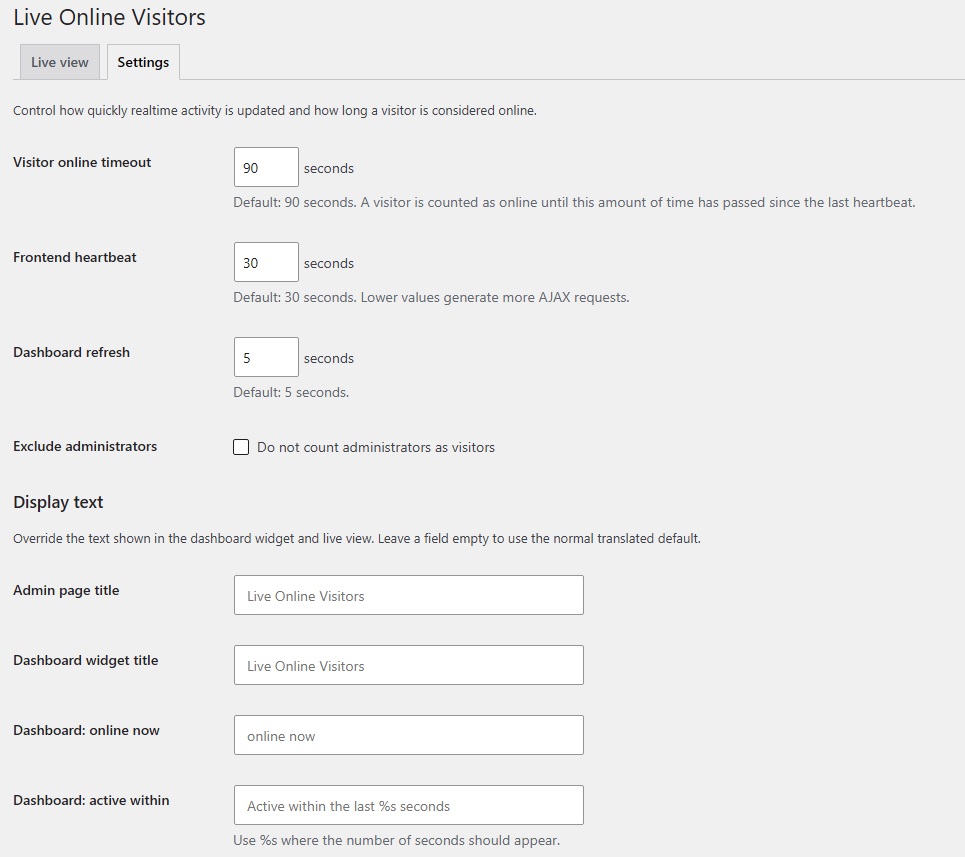
- Configure how long a visitor should be considered online.
- Configure the frontend heartbeat interval.
- Configure how often the dashboard refreshes.
- Optionally exclude logged-in administrators from visitor statistics.
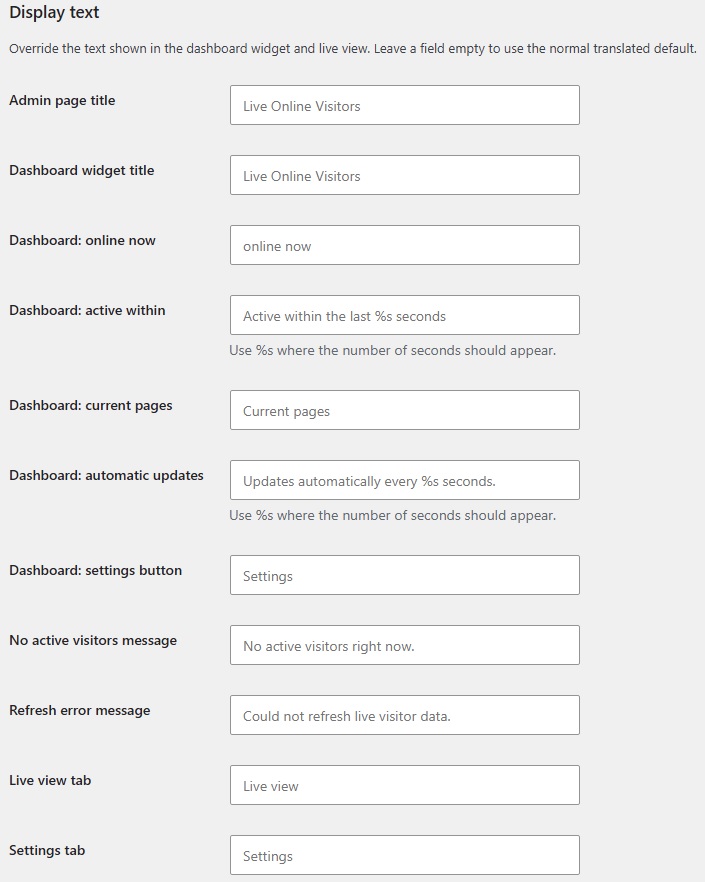
- Customize the text displayed in the dashboard widget and Live View.
- Works directly inside WordPress without requiring Google Analytics or another external analytics dashboard.
Simple real-time monitoring
Live Online Visitors is designed to provide a quick overview of current website activity rather than complex historical analytics.
It is useful when you simply want to answer questions such as:
- How many people are on my website right now?
- Which pages are they viewing?
- Is anyone currently looking at a specific product, article, or landing page?
The plugin runs independently and displays the information directly in your WordPress administration area.
WDOnline Live Visitor Monitor shows current activity on your WordPress website directly in the admin area. Use it to see how many visitors are active and which pages they are viewing, without opening a separate analytics dashboard.
Getting started
- In WordPress, go to Plugins → Add New → Upload Plugin.
- Select the WDOnline Live Visitor Monitor ZIP file, install it, and activate the plugin.
- Open WD Online → Live Visitor Monitor in the WordPress admin menu to view the live dashboard.
The dashboard updates automatically while it is open. You do not need to refresh the browser to see recent activity.
Understanding the dashboard
Active visitors is an estimate of visitors whose pages have reported activity recently. It is a live snapshot, not a count of everyone who visited today. The number can change as people arrive, navigate, or become inactive.
The page list shows the pages currently being viewed and the number of active visitors associated with each page. Click a page title to open that page on your website. Where available, the plugin displays a readable page title so you can recognize the content quickly.
The plugin tracks page paths without query parameters. For example, visits to a page with different tracking parameters can be shown together under the same page path.
Why a page may remain visible briefly
A page may stay on the dashboard for a short time after a visitor stops interacting with it or closes the browser. The monitor relies on recent activity signals, so an inactive visit is removed after the applicable activity window expires. It does not confirm that someone is looking at the screen at every instant.
If a visitor navigates to another page, allow a moment for the dashboard to update. Browser caching, connection interruptions, and the visitor’s device may also affect when an update appears.
Using the monitor
The dashboard is useful when you want to check whether visitors are currently browsing your site, see which pages attract attention during a campaign, or confirm that a recently shared link is receiving visits. It provides an immediate operational view. For historical traffic reports, conversions, and attribution, use an analytics tool alongside it.
Troubleshooting
No visitors appear: Open a public page in another browser or a private window, wait briefly, and check the dashboard again. Also confirm that the plugin is active and that the public page loads normally.
The dashboard does not update: Reload the admin page once. If the problem continues, temporarily check whether a cache or security plugin is blocking the requests needed to update the monitor.
A page remains listed longer than expected: Wait for the activity window to expire and refresh the dashboard. If it still appears, contact support with the plugin version, your WordPress version, and the steps needed to reproduce the issue.
If WD Online Support Diagnostics is installed, support may ask you to run a temporary diagnostic session. The visitor monitor does not require that separate plugin for normal operation. Review any diagnostic report before sharing it with support.
Privacy
The monitor is designed to show current activity and page paths in your own WordPress admin area. A page path can itself contain information you consider sensitive, so review how URLs are structured on your site and restrict dashboard access to trusted administrators. Consult your own privacy policy and applicable requirements when describing site activity tracking to visitors.
Support
Need help with WDOnline Live Visitor Monitor? Contact WD Online through wdonline.dk and include the plugin version, a description of the issue, and the steps that reproduce it.
Do you have suggestions for improvements to this plugin?
Plugin screenshots
Support WD Online
Our plugins are free. If you find them useful, you can support continued development. You decide the amount yourself and we see any amount as recognition that our plugin helps others.