
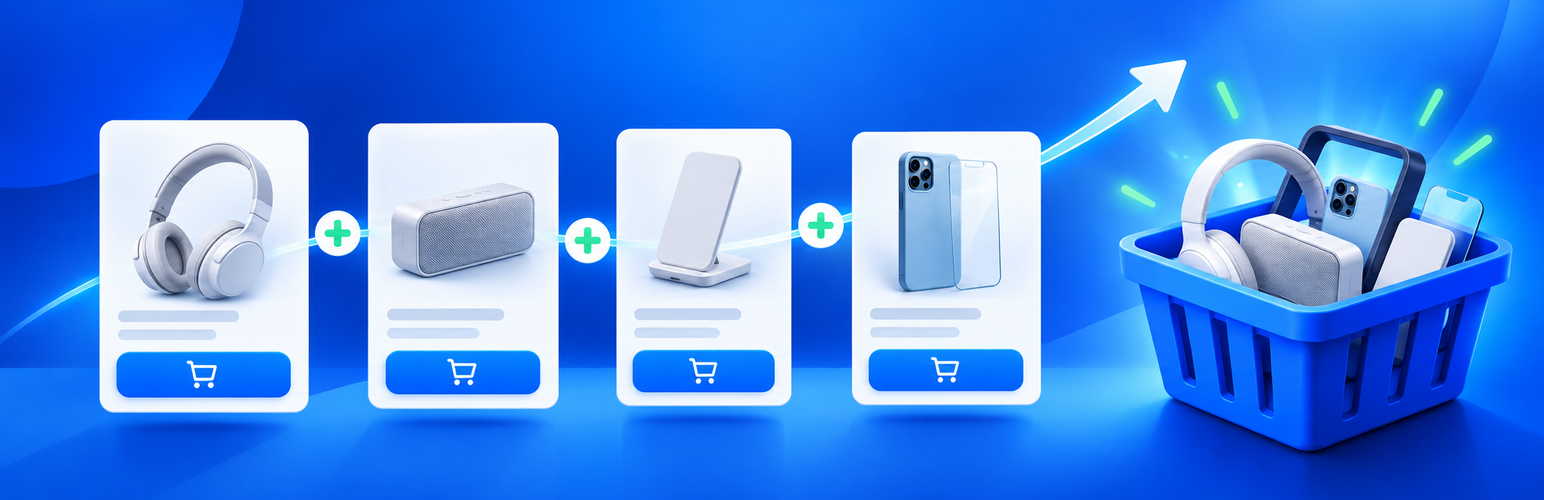
Make your best product recommendations impossible to miss
Your customers may be interested in a better version of the product they are viewing, a useful accessory, or one more item that completes their order. WooCommerce lets you assign upsells and cross-sells, but those recommendations are only useful when shoppers actually see them.
WDOnline Smart Upsells for WooCommerce brings your offers forward with prominent product boxes on product pages, in the cart, and during checkout. Use products you have already linked in WooCommerce, or create reusable promotional boxes that you can assign across your catalog. Choose where the offers appear, tailor their design to your store, and give shoppers a clear route to the suggested products.
Free WooCommerce plugin · No separate WD Online core plugin required
Show the right offer at the right moment
An upsell is an invitation to consider a different or upgraded product. A cross-sell suggests a complementary product that fits the shopper’s purchase. Both work best when they appear at a relevant point in the shopping journey.
Smart Upsells gives you three places to present those recommendations:
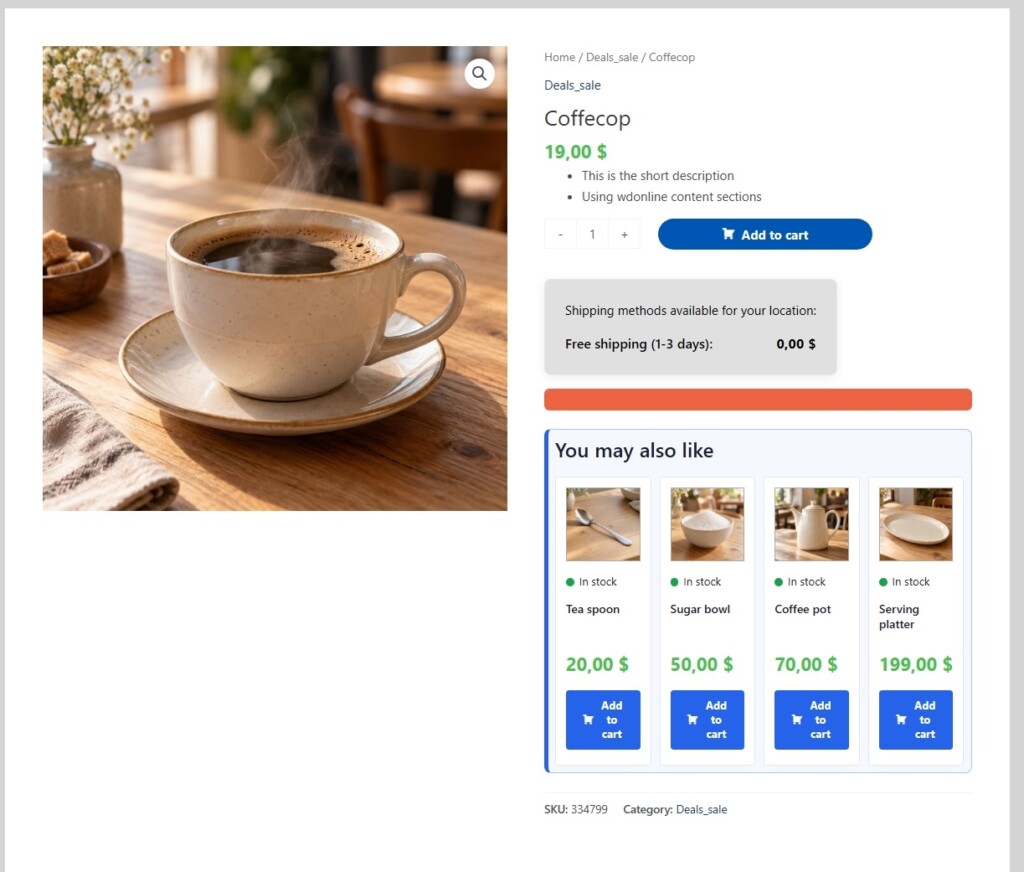
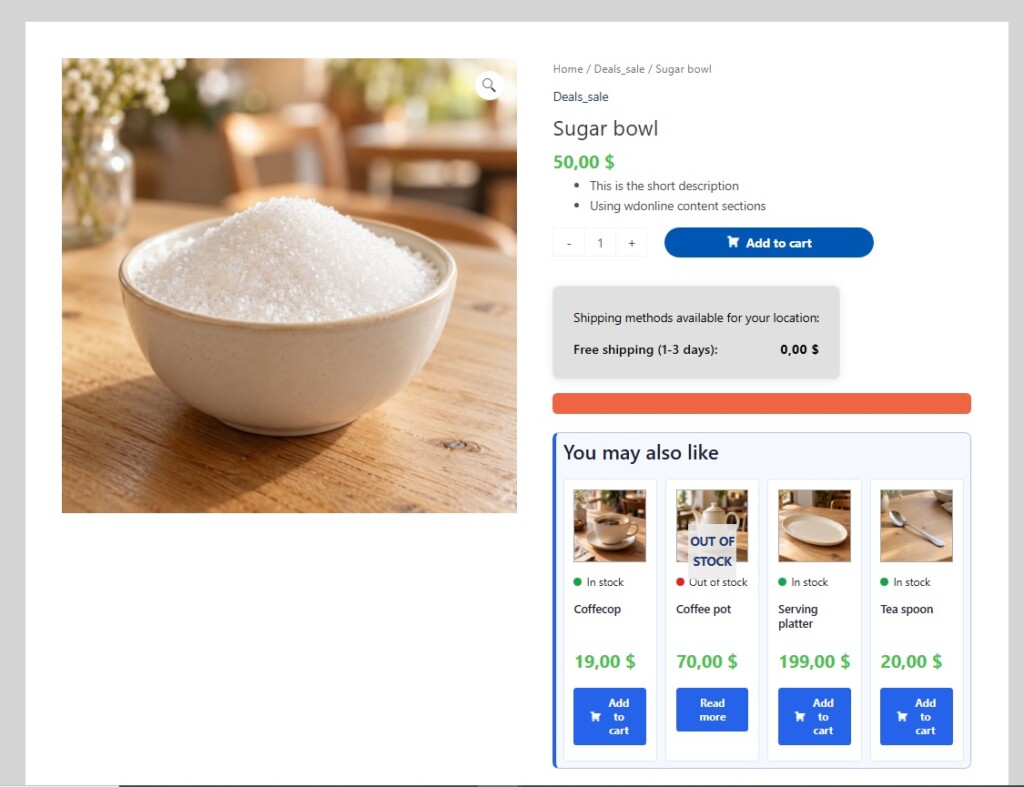
- Product pages: Highlight an assigned promotional box or the product’s native WooCommerce upsells while shoppers are deciding what to buy.
- Cart: Show the cross-sells already configured for the products in the cart before the customer moves on.
- Checkout: Display a final, relevant cross-sell offer in classic WooCommerce checkout layouts.
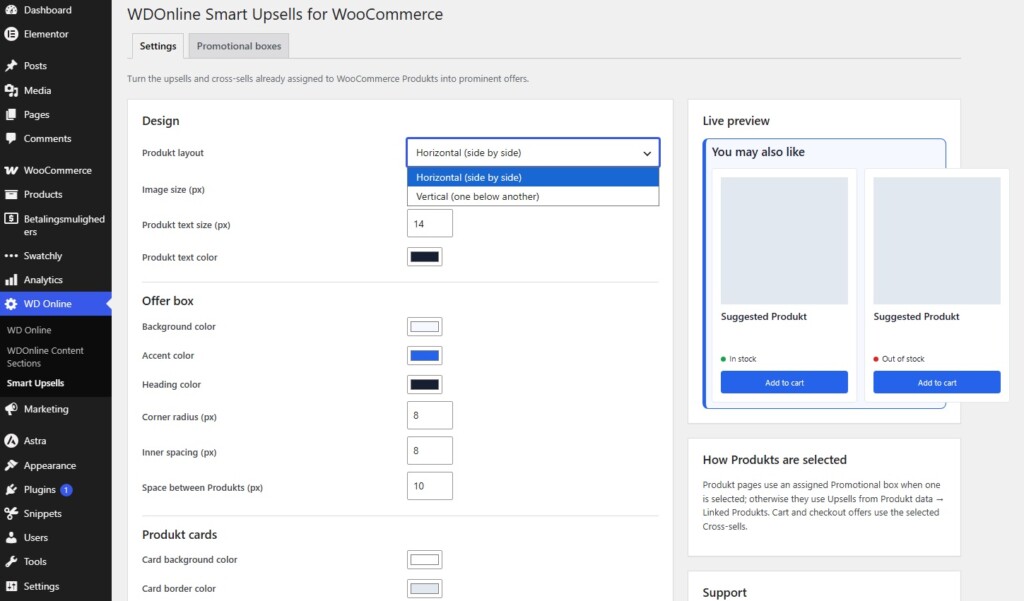
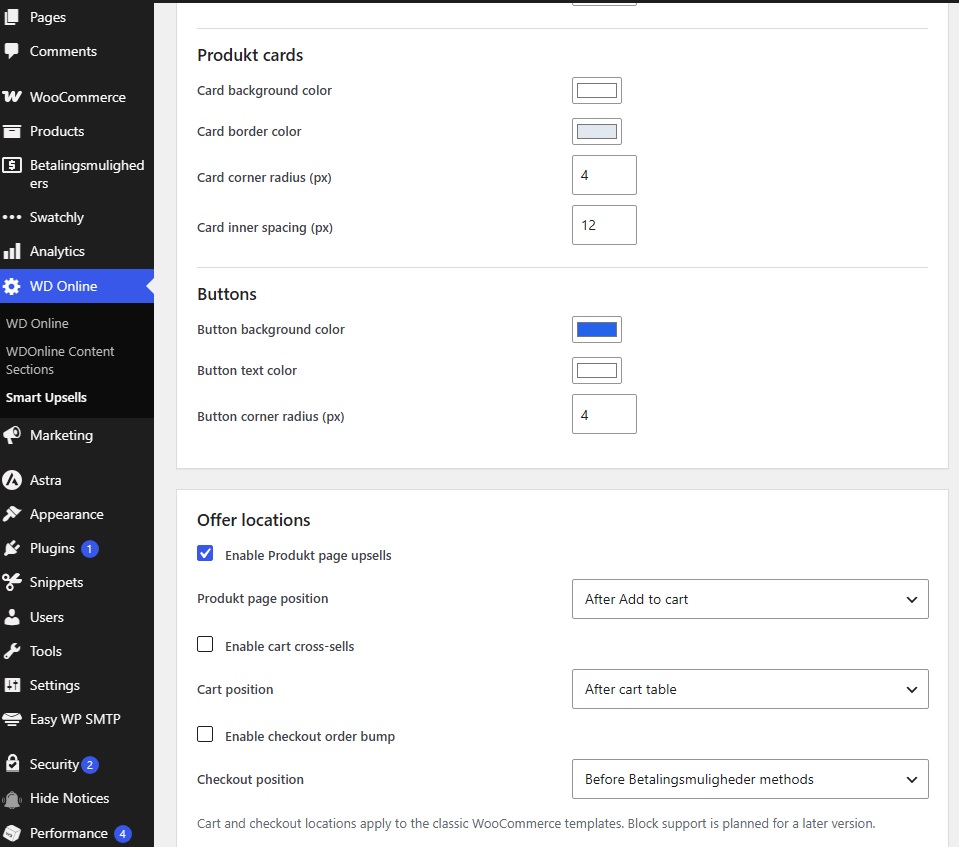
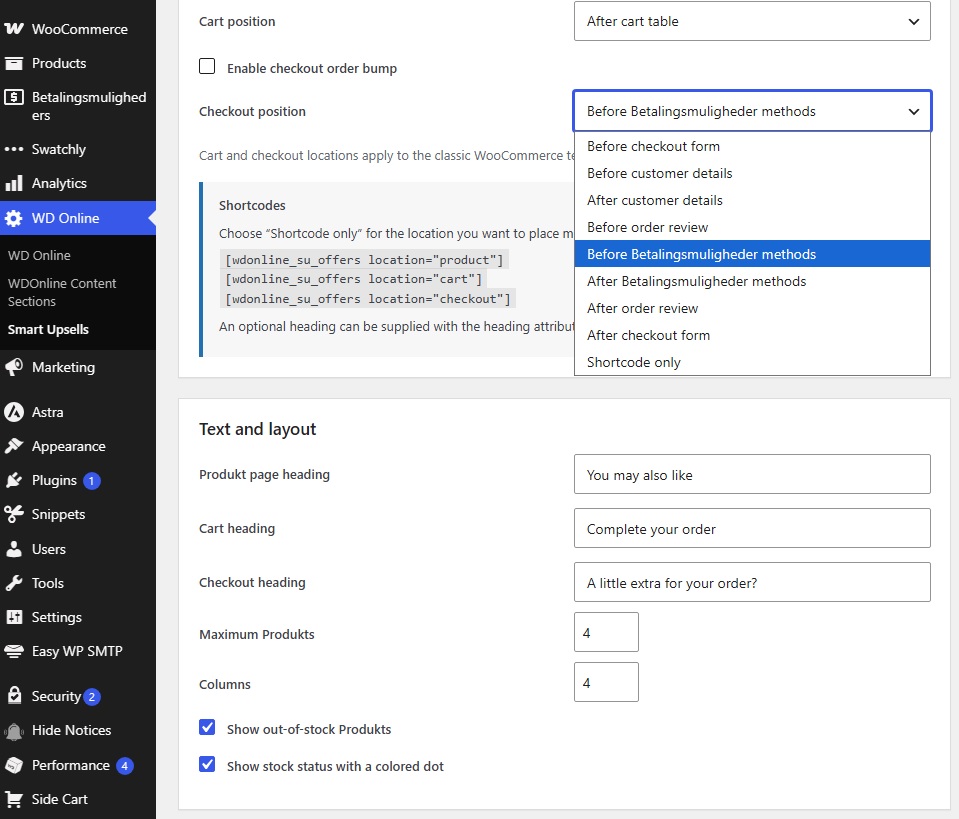
Each display location starts disabled. Enable the locations that fit your store and choose a placement for each one under WD Online → Smart Upsells.
Turn ordinary linked products into visible offers
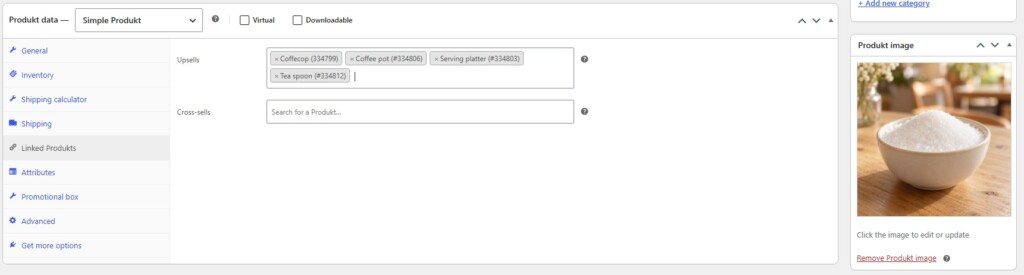
Already added products under Product data → Linked products? You can put that work to use. Products without an assigned promotional box display their native WooCommerce upsells on the product page. The cart and checkout offers draw from WooCommerce cross-sells.
This makes it easy to build on the product relationships you already maintain. For example, recommend a premium alternative on the product page, an accessory in the cart, and a complementary item at checkout.
Offers use WooCommerce product cards and standard add-to-cart behavior. Purchasable simple products can be added directly; variable products present WooCommerce’s usual Select options action so shoppers can choose a variation.
Create promotional boxes once. Reuse them across your catalog.
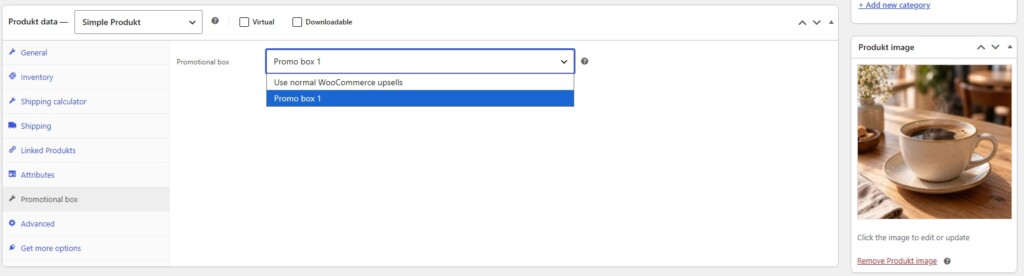
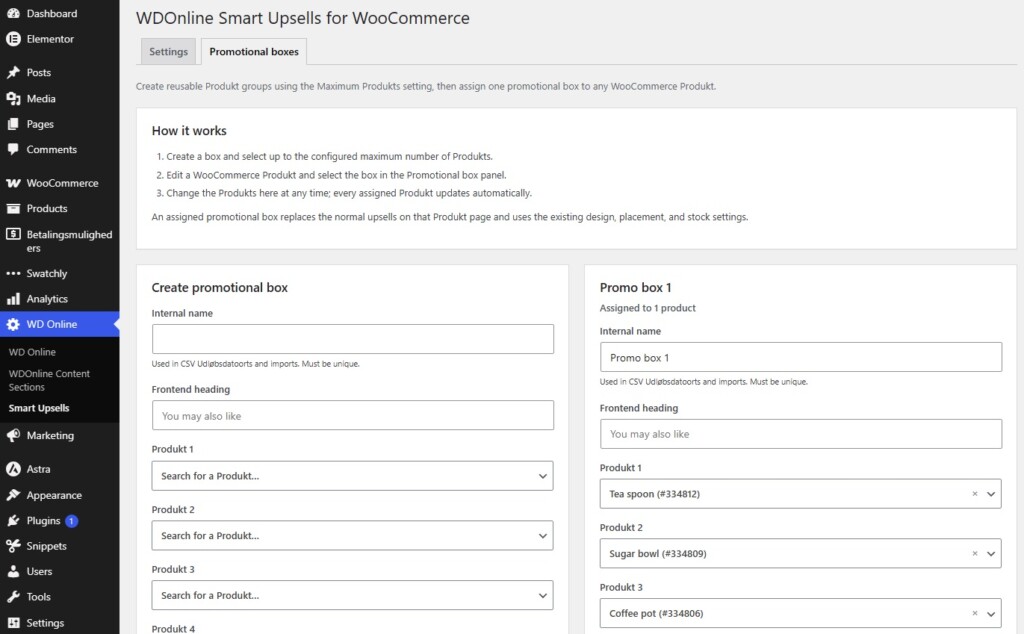
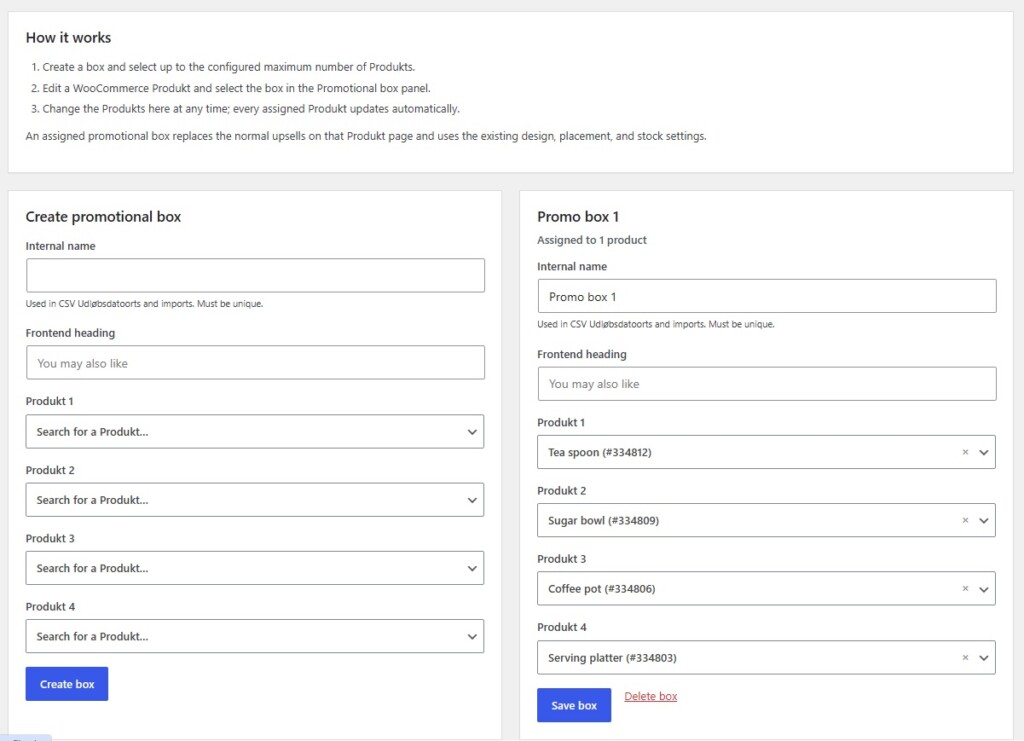
Some offers belong on many product pages. Instead of editing the same recommendations on every product, create a Promotional box with its own heading and up to four selected products. Assign it to any number of WooCommerce products.
When you change the products or heading in a promotional box, every product page using that box reflects the update. This is useful for accessory collections, seasonal selections, starter bundles, or a hand-picked range that supports several related products.
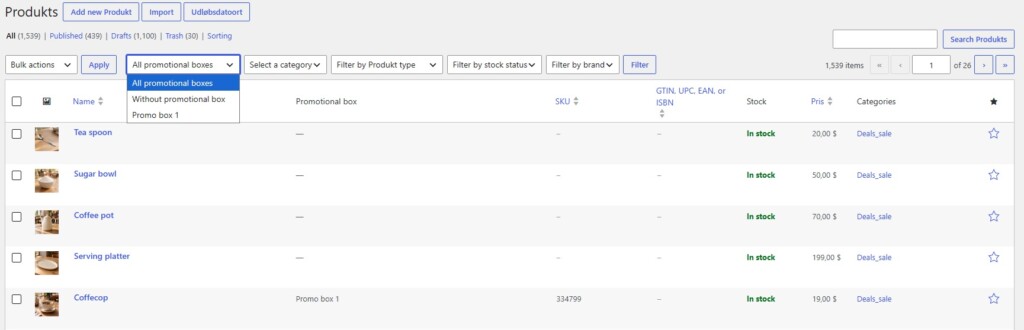
An assigned promotional box takes the place of native upsells on that specific product page. Products without one continue to use their regular WooCommerce upsells. You can see how many products use a box, and the plugin cleans up their assignments if the box is deleted.
Manage offers across a larger catalog
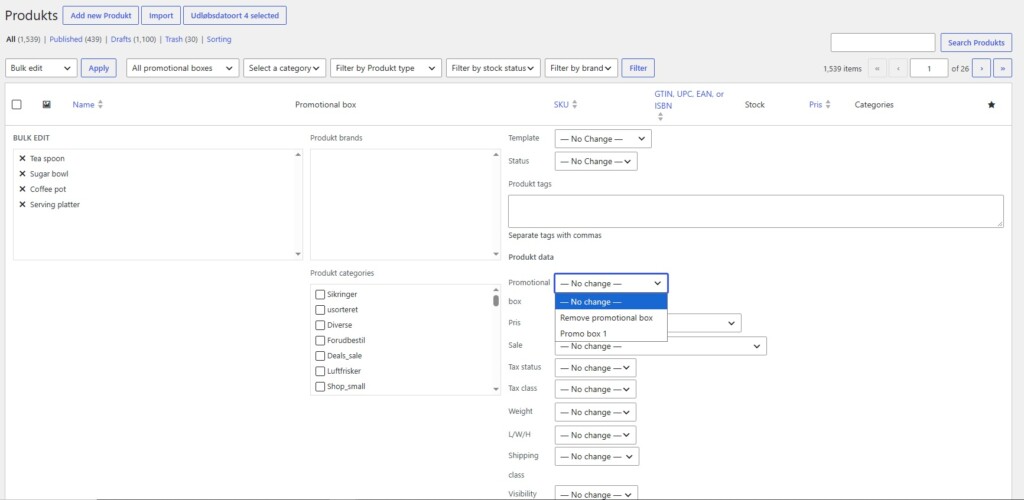
Promotional boxes have unique internal names for administration. Assign them to products in the product editor or through WooCommerce’s product bulk editor. WooCommerce product CSV export also includes a readable Promotional box column, and import can use the internal box name to restore or update assignments. That gives larger stores a practical way to maintain offer assignments alongside their normal product data.
Choose where each box appears
Different stores need different layouts. Smart Upsells offers multiple automatic positions for product, cart, and checkout boxes, plus manual placement with a shortcode. You can place an offer in a suitable content area or template rather than accepting a single fixed position.
For manual placement, choose the shortcode placement option for the relevant location and insert:
You can also set a heading in the shortcode, for example:
The checkout offer can update after a product is added through AJAX, so the customer sees an up-to-date checkout instead of having to refresh the page manually.
Make the offers look like part of your store
An offer should catch the eye and still feel at home in your shop. Customize the box headings, colors, product text size, image size, columns, layout, and corner radius. Choose a horizontal or vertical product presentation, and use the live preview in the settings screen to see design changes as you make them.
Product images use square display areas with a contain fit, helping the complete product image remain visible. Optional green and red stock indicators can make availability clearer. You can also decide whether out-of-stock linked products should be included in the offers.
The plugin excludes unavailable and already selected products from offers automatically, helping keep the suggestions useful and avoiding repeated recommendations.
A practical example
Imagine a customer viewing a coffee machine:
- On the product page, show a promotional box with compatible coffee, filters, a cleaning kit, and a milk frother.
- In the cart, show a cross-sell for the cleaning kit if it is still relevant to the current order.
- At checkout, present a final complementary product in a compact offer box.
You choose the products and locations. The plugin handles their presentation through your existing WooCommerce store. It does not automatically generate recommendations or promise a particular increase in sales.
Key features
- Display WooCommerce upsells prominently on single-product pages.
- Display WooCommerce cross-sells in the cart and classic checkout.
- Create multiple reusable promotional boxes, each with a heading and up to four products.
- Assign promotional boxes to individual products or through the product bulk editor.
- Update a box centrally across all assigned products.
- Import and export promotional box assignments with WooCommerce product CSV files.
- Choose from several automatic placements or position offers with a shortcode.
- Customize headings, colors, image and text size, columns, layout, and corners.
- Preview design changes on the settings screen.
- Choose whether to include out-of-stock linked products and show stock indicators.
- Use familiar WooCommerce product cards and add-to-cart actions.
- Run the plugin independently of any other WD Online plugin.
- Translate customer-facing text using standard WordPress translation tools.
Get started in a few steps
- Install and activate WDOnline Smart Upsells for WooCommerce with WooCommerce active.
- Go to WD Online → Smart Upsells and enable the product, cart, or checkout locations you want to use.
- Add upsells and cross-sells to products in Product data → Linked products.
- Optionally create reusable boxes in the Promotional boxes tab and assign them to products.
- Select your placements, adjust the design with the live preview, and check your storefront.
Frequently asked questions
Does the plugin replace WooCommerce’s linked products?
No. It displays the upsells and cross-sells you configure in WooCommerce. You can also assign a reusable promotional box to a product page; that box takes the place of the product’s native upsells on that page.
Can I show the same offer on many product pages?
Yes. Create one promotional box, add up to four products, and assign the box to multiple products. Editing it later updates every assigned page.
Can I choose the exact position of an offer?
The plugin provides several automatic placements for each location. For manual placement, select the shortcode option and insert with the appropriate location value.
Does it work with variable products?
Yes. Variable products use WooCommerce’s Select options button, allowing the shopper to choose the required variation.
Does it support WooCommerce Cart and Checkout blocks?
Cart and checkout offers in version 0.3.3 target classic WooCommerce cart and checkout templates. Cart and Checkout block integration is not included in this version. Check which templates your store uses before relying on these two placements.
Do I need another WD Online plugin?
No. Smart Upsells works as a standalone plugin alongside WooCommerce. Integration with WD Online Support Diagnostics is optional.
Is the plugin free?
Yes. WD Online makes this plugin available for free. If you find it useful, you can support it.
Give every recommendation a better chance to be seen
Put useful products in front of shoppers while they browse, review their cart, and complete their purchase. With native WooCommerce linked products, reusable promotional boxes, flexible placement, and visual controls, Smart Upsells makes it easier to present the offers you have already chosen.
Do you have suggestions for improvements to this plugin?
Plugin screenshots
Support WD Online
Our plugins are free. If you find them useful, you can support continued development. You decide the amount yourself and we see any amount as recognition that our plugin helps others.